What you need
- An Android phone or tablet with Android 5.0 or newer.
- An Astria VPN account (email and password). No account yet? The free 24-hour trial is issued in Telegram by the bot @AstriaVPN_bot and gives you a real account for one device.
- An internet connection (Wi-Fi or mobile data) for the first sign-in.
Step 1: Install the app and sign in
Open astriavpn.com/download on your phone, choose Android and sign in to your account — the download is available to account holders. Open the downloaded file; if Android asks, allow installation from this source (the browser or Files app you used).
Launch Astria VPN and sign in with your email and password. After signing in you land on the Connect tab. Your subscription end date is shown under the connection controls.
Step 2: Connect with one tap
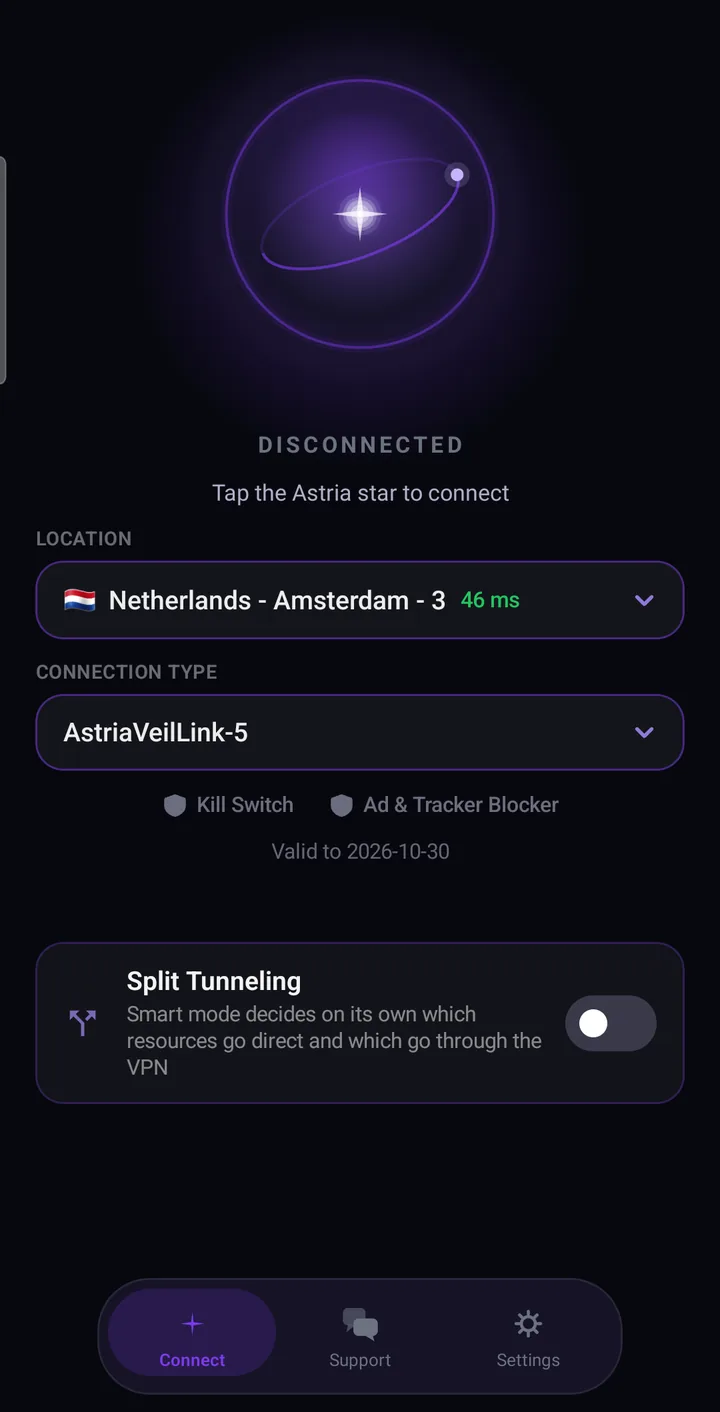
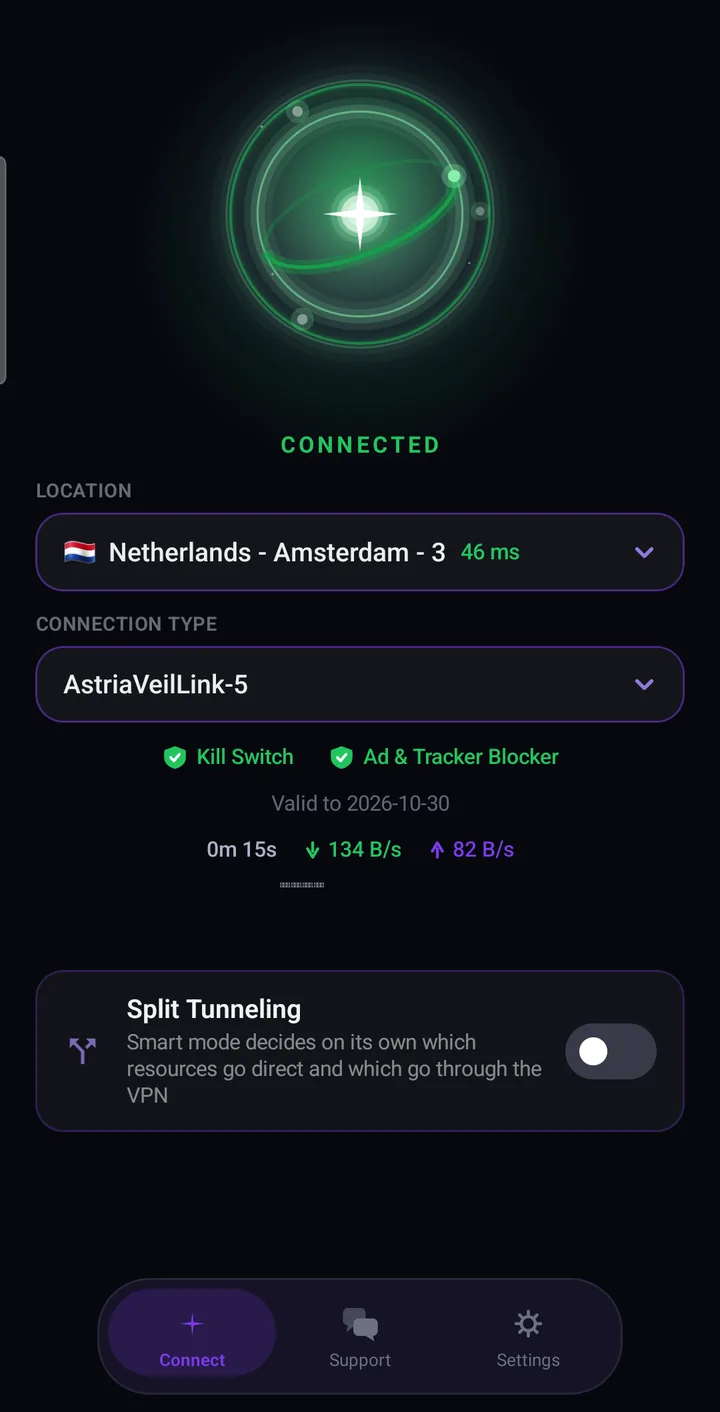
The main screen is the Connect tab. The status line reads “Disconnected”. Tap the Astria star in the middle of the screen. Android shows a one-time system request to allow a VPN connection — confirm it.
In a few seconds the star turns green and the status changes to “Connected”. You will see a timer and live upload/download speed. Tap the star again to disconnect.
Step 3: Choose a location
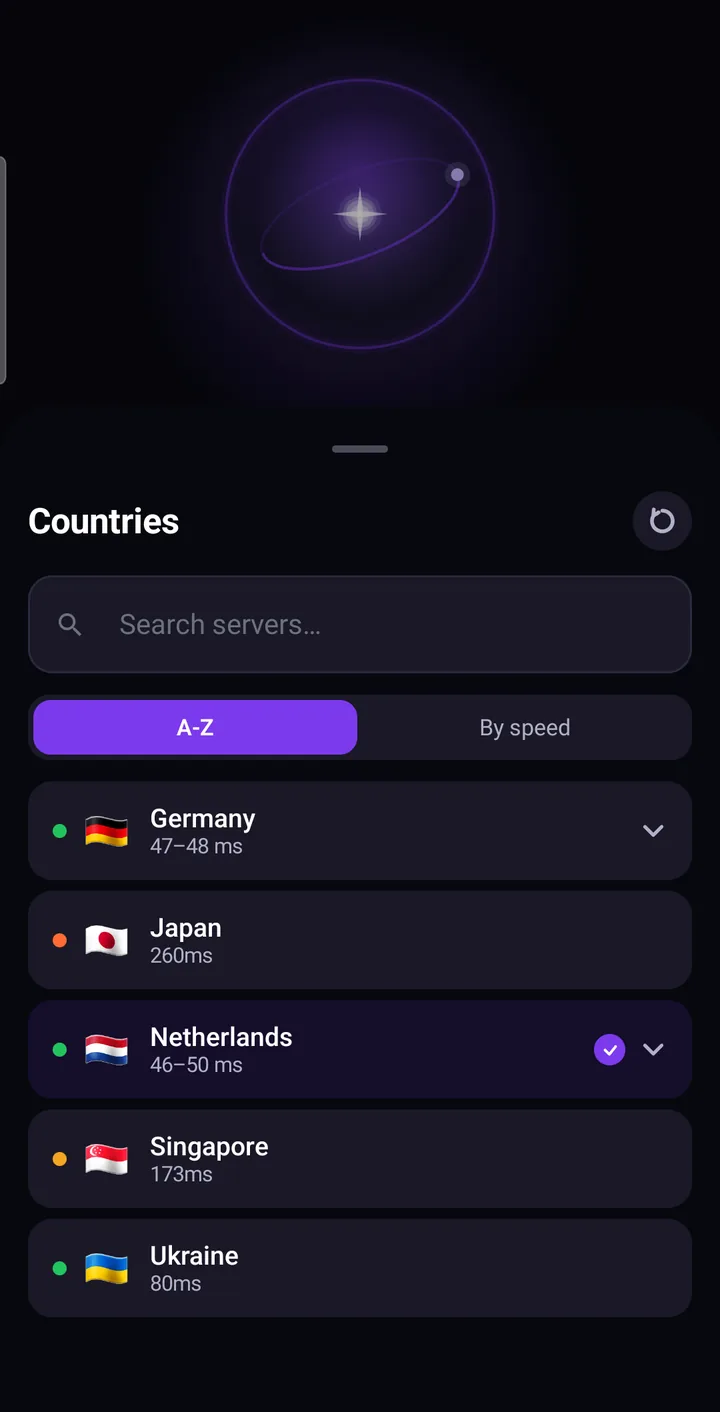
Tap the Location field to open the list of countries. Each country shows its current response time; green means fast. Use “A–Z” to sort by name or “By speed” to put the quickest countries first, type in the search box to find a server, and tap the refresh button to re-measure.
Tap a country to select it, or expand it to pick a specific server. The new choice applies the next time you connect.
Step 4: Choose the connection type — start with AstriaVeilLink-5
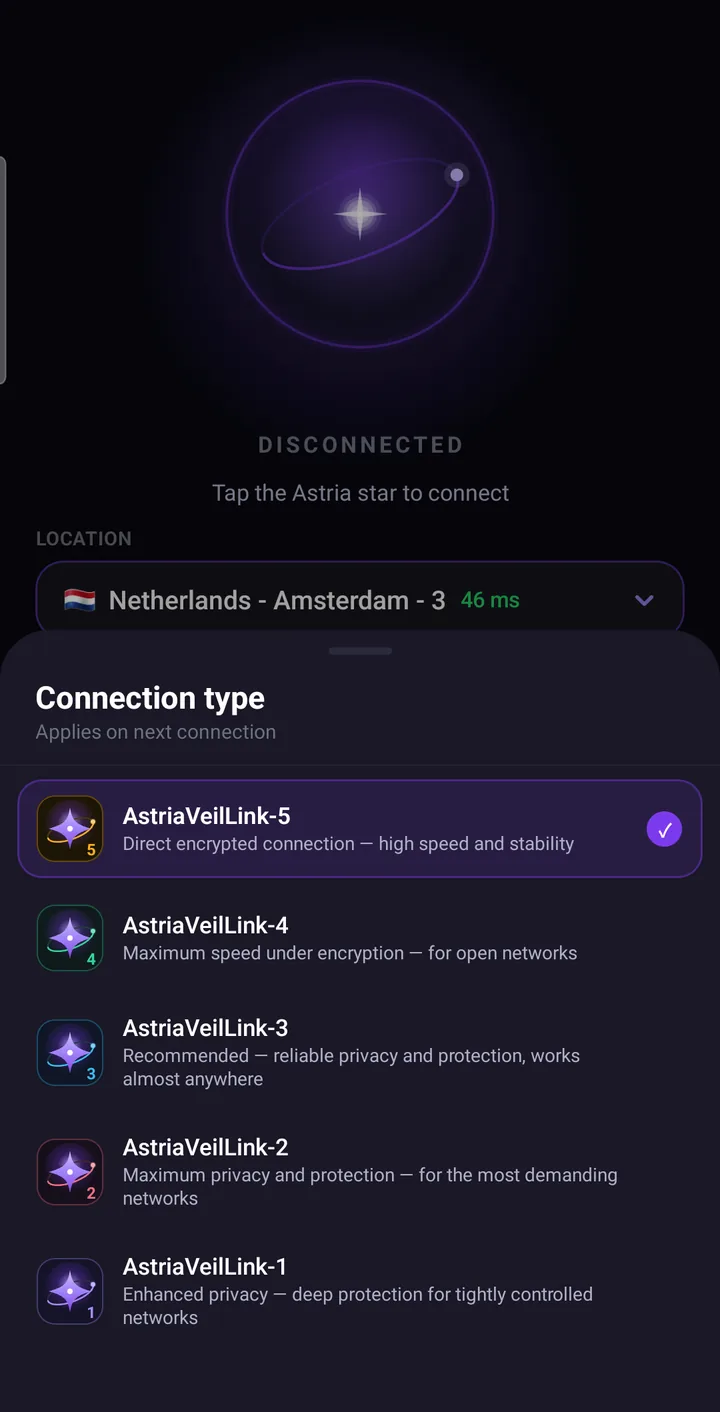
Under “Connection type” you pick one of five AstriaVeilLink modes. We recommend AstriaVeilLink-5 for everyone: it is a direct encrypted connection with the highest speed and stability, and it is the default.
If a particular network gives you an unstable connection, step down one mode at a time — AstriaVeilLink-4, then -3, -2 and finally -1. Each step down trades a little speed for more reliability headroom. The choice applies on the next connection.
- AstriaVeilLink-5 — direct encrypted connection, high speed and stability (recommended, start here).
- AstriaVeilLink-4 — maximum speed under encryption, for open networks.
- AstriaVeilLink-3 — a dependable middle step that works almost everywhere.
- AstriaVeilLink-2 — maximum privacy and protection for the most demanding networks.
- AstriaVeilLink-1 — enhanced privacy and the most cautious mode; the last step.
Step 5: Turn on the protection features
Open the Settings tab. The Connection section holds the switches that keep your data protected. Recommended setup: leave Kill Switch on, keep ad and tracker blocking on, and keep DNS protection enabled.
- Kill Switch — blocks traffic if the protected connection drops, so nothing leaks outside the tunnel.
- Always-on VPN — asks Android to keep the VPN active all the time and to block traffic when it disconnects; open it from “Set up in system settings”.
- Stability during sleep — if the connection drops while the phone is idle, allow the app to run without battery restrictions (on Samsung, Xiaomi and Huawei there may also be a separate power-saving setting for the app).
- Auto-connect on device boot and on Wi-Fi — connect automatically so you are never unprotected by accident.
- Local network (LAN bypass) — keeps access to devices in your home network, such as a printer or TV.
- DNS protection — your DNS queries are encrypted and answered by Astria VPN’s own resolver on the VPN node, without third-party DNS providers. Switch on “Ads & trackers” and “Malicious sites” (phishing and malware domains) to filter them at the DNS level. Parental control (blocking adult 18+ sites) is optional and off by default. DNS filtering cannot tell YouTube video ads from the video itself, so those stay.
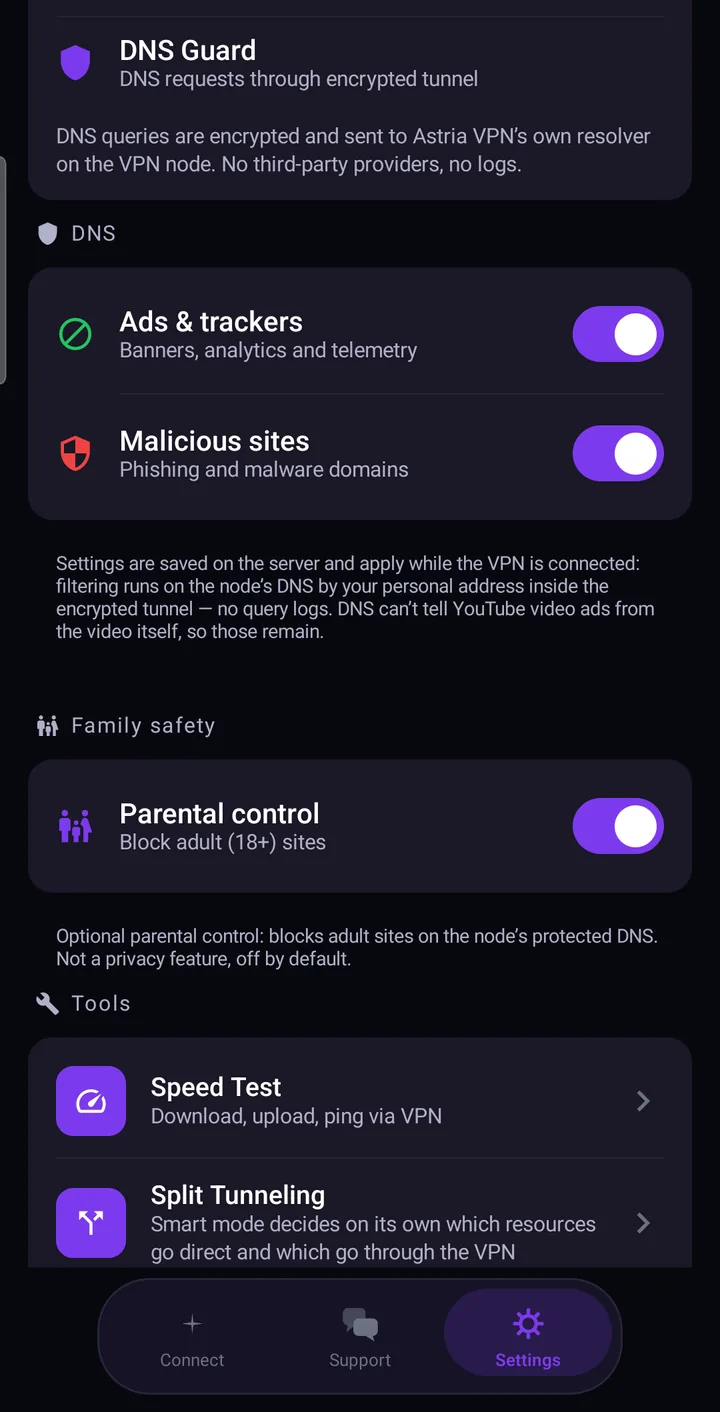
Step 6: Regional mode (split tunneling)
In regions where it applies, a “Split tunneling” card with a single switch appears on the main screen (and in Settings → Tools). It is always off until you turn it on. When it is on, the app decides on its own which local services go directly and which stay inside the VPN. If you do not see the card, the option is not offered in your region. There is no manual list yet: split tunneling for all devices and manual choice of resources are in development.
Step 7: Account, devices and tools
At the top of Settings you see your account: email, subscription end date and “Active sessions” — how many of your allowed devices are signed in (for example “2 of 3”). Open it to see and remove devices. “Sign in on Android TV” lets you log in on your TV by scanning a QR code shown on the TV screen.
Under Tools there is a built-in Speed Test (download, upload and ping through the VPN) and an Event log with the app and connection logs — attach it to a support request if something goes wrong. In “Check for updates” you can install new versions; the interface language (English, Russian, Ukrainian, Chinese) is under General.
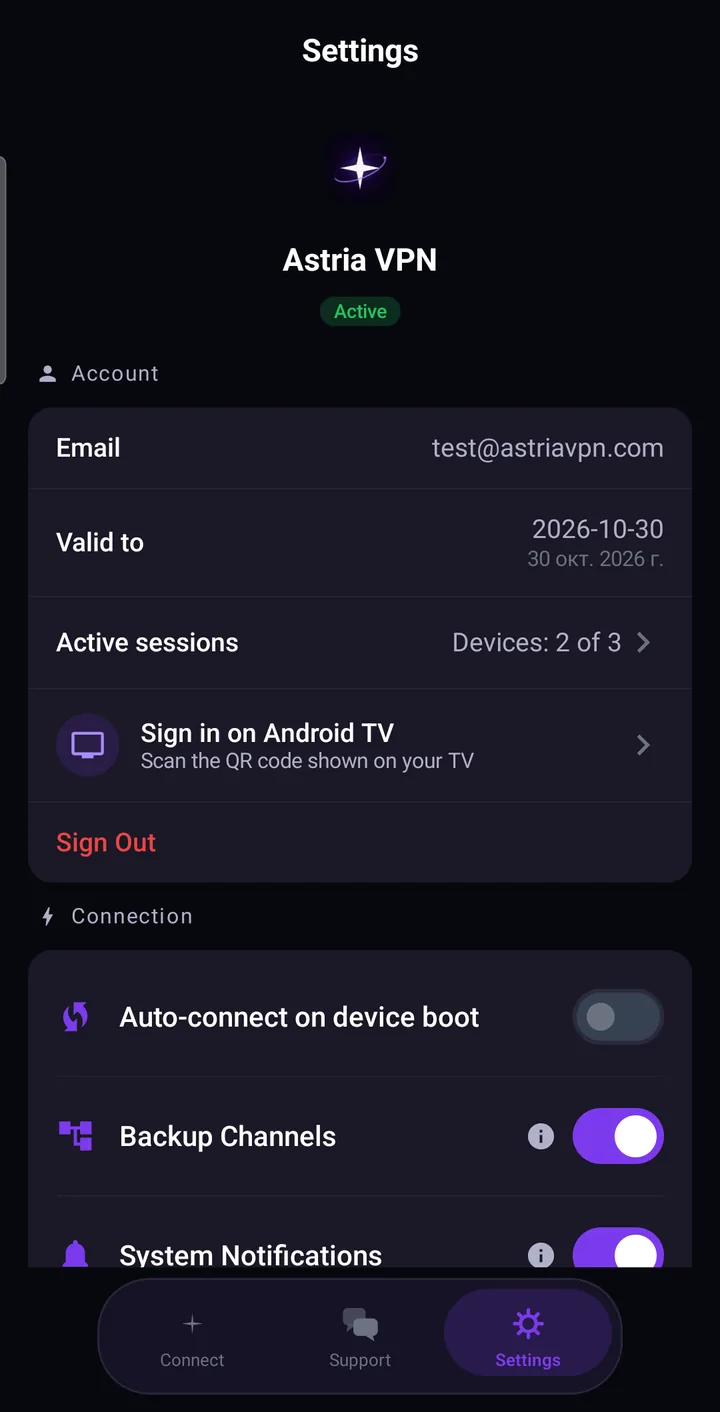
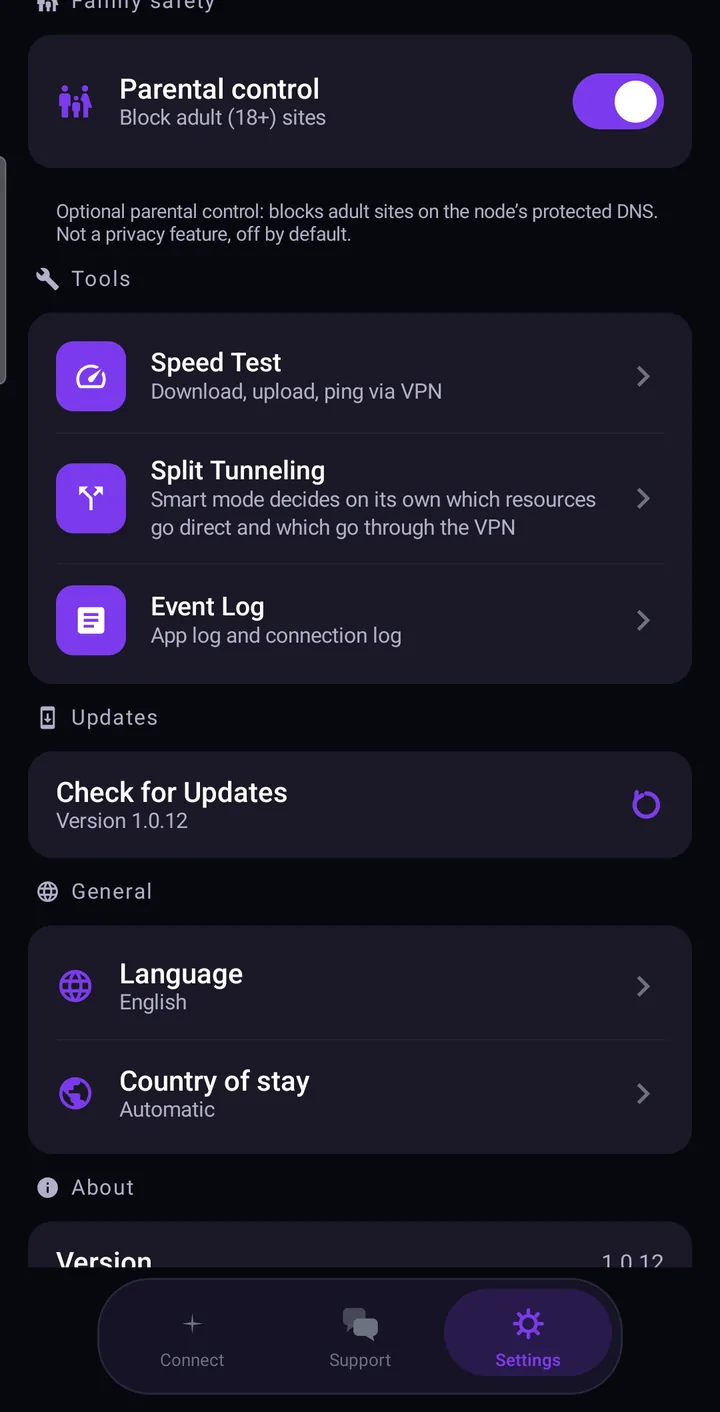
Step 8: Contact support in the app
The Support tab opens an end-to-end protected chat with our team; we usually answer within an hour. Describe the problem, attach a screenshot or video with the picture icon and a file with the paperclip icon. You can also write to support@astriavpn.com.
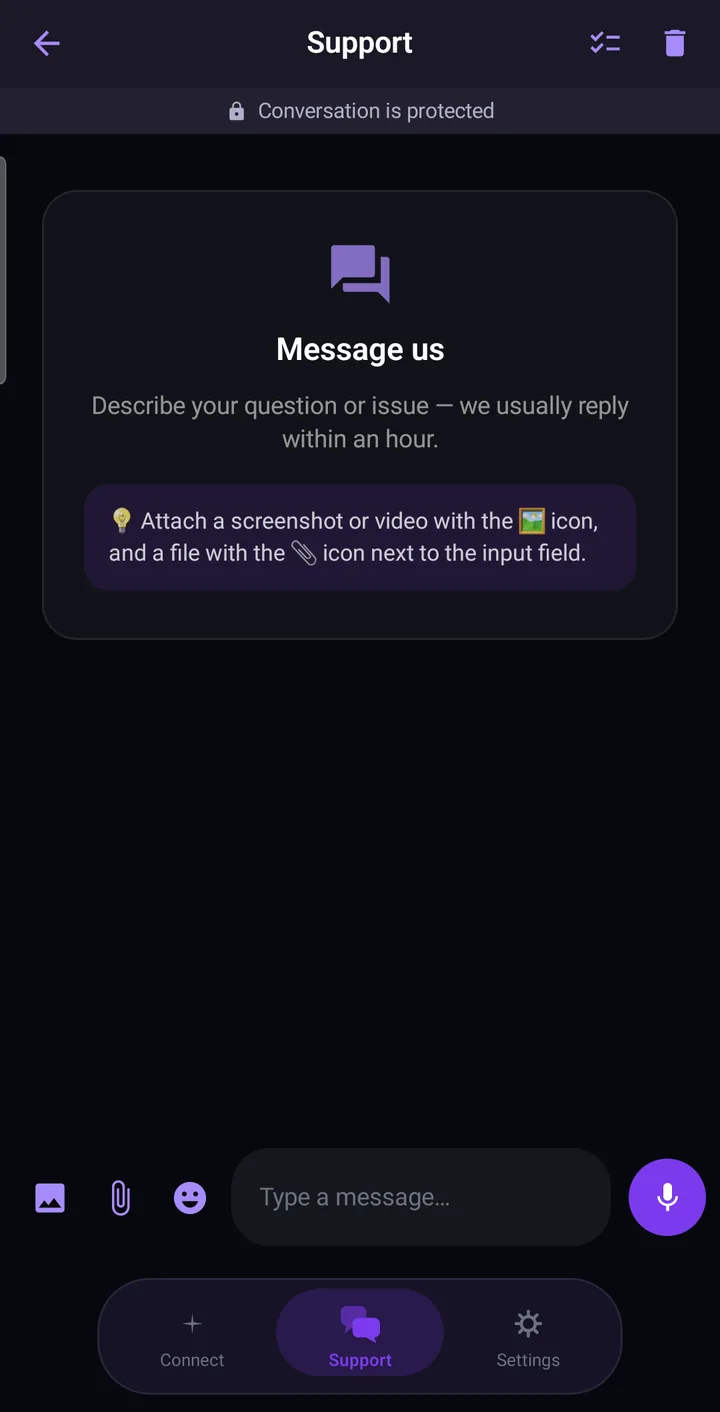
Quick tips for the best protection
- Keep the connection type on AstriaVeilLink-5 and only change it if a network is unstable.
- Leave Kill Switch and DNS protection on at all times.
- Turn on auto-connect so the VPN starts with your phone and on Wi-Fi.
- On a phone that drops the connection in sleep mode, allow the app to ignore battery optimisation.
- Attach the event log to your message when you contact support.
Frequently asked questions
Which connection type should I use on Android?
Use AstriaVeilLink-5. It is the recommended default — a direct encrypted connection with the highest speed and stability. Switch to -4, -3, -2 and -1 only if a network makes the connection unstable.
How do I connect and disconnect?
Open the Connect tab and tap the Astria star. It turns green when you are connected. Tap it again to disconnect.
Why does the connection drop when my phone sleeps?
Android may stop background apps to save battery. In Settings choose “Open battery settings” under Stability during sleep and allow Astria VPN to run without restrictions; on Samsung, Xiaomi and Huawei also check the app’s separate power-saving setting. Always-on VPN and auto-connect also help.
What does Kill Switch do?
It blocks all traffic if the protected connection drops, so your data never travels outside the encrypted tunnel unnoticed. Always-on VPN in Android settings strengthens this.
How many devices can I use?
The number depends on your plan (1, 3 or 5 devices). Settings → Active sessions shows how many are in use and lets you sign a device out.
Can I use Astria VPN on Android TV?
Yes. In Settings tap “Sign in on Android TV” and scan the QR code shown on your TV.
Does Astria VPN block ads?
Yes — ad and tracker blocking works at the DNS level on the VPN node. YouTube video ads cannot be told apart from the video by DNS, so they remain.
Where do I get help?
Open the Support tab in the app for a protected chat, or write to support@astriavpn.com. Attach the event log from Settings → Tools.
Get the app
Download Astria VPN for Android from the download page, or start with the free 24-hour trial in Telegram.