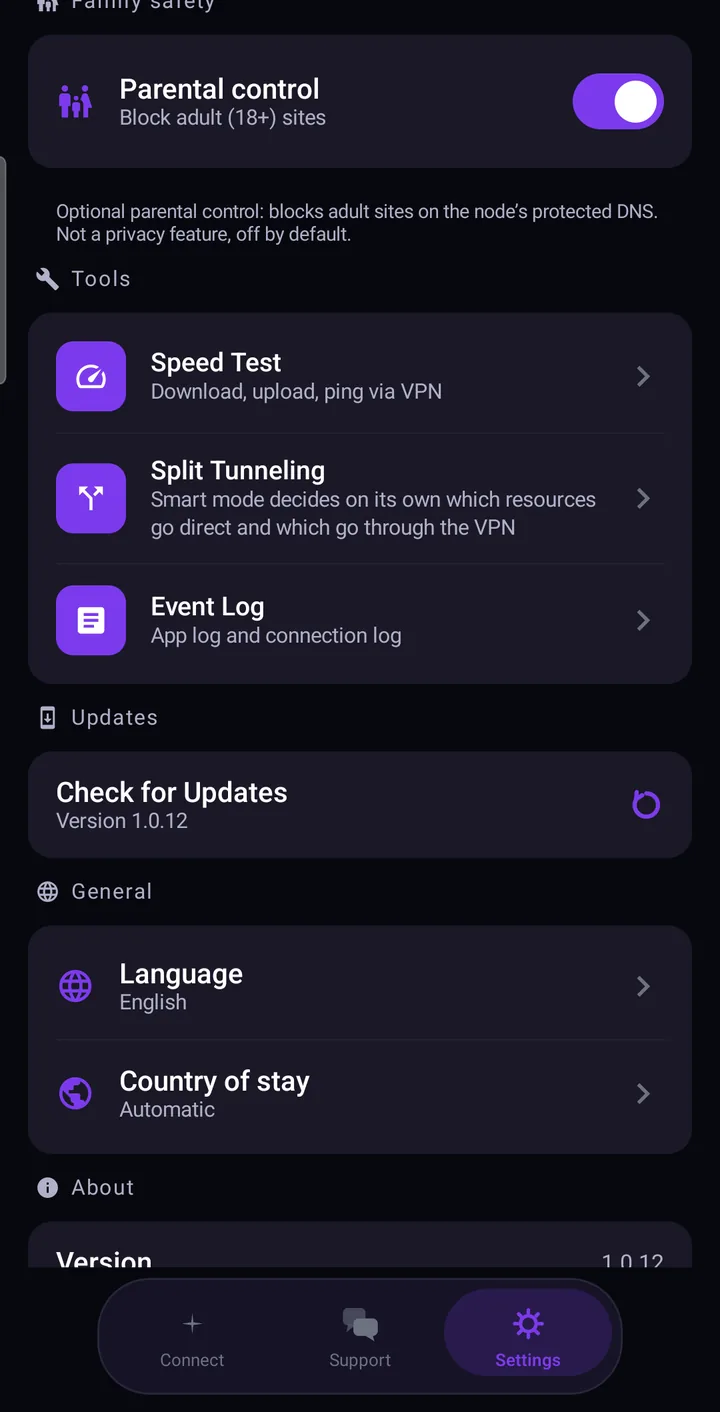
Astria VPN for Android has three built-in tools for when something feels off: a Speed Test that measures download, upload and ping through the VPN, an Event log with an app log and a connection log, and a protected support chat. All three are a few taps away — the first two under Settings → Tools, the chat in the Support tab.
Speed Test
Open Settings, find the Tools section and tap “Speed Test”. The screen reads “Download, upload, ping via VPN” in its description, and that is exactly what it does.
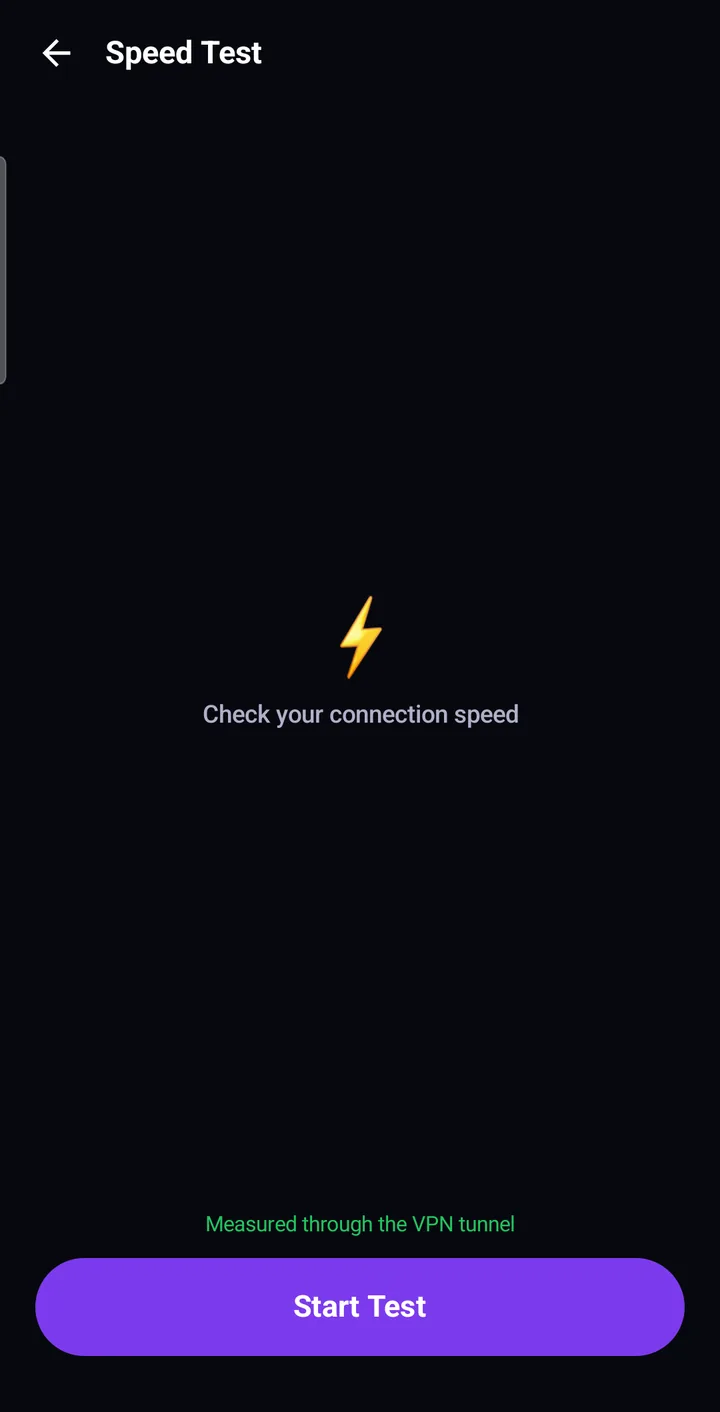
Connect to a country first, then tap “Start Test”. When it finishes, you see three values:
- Download — how fast data arrives from the internet to your phone.
- Upload — how fast data leaves your phone.
- Ping — how long a small request takes to make a round trip.
The screen also keeps the result of the “Last test” with its age, so you can compare before and after a change. If a test fails, the app asks you to check the connection and run it again with “Test Again”.
How to read the results
There is no single “good” number. Speed depends on your own internet plan, your Wi-Fi or mobile signal, the time of day, and the distance to the server you picked. A few honest rules of thumb:
- Compare like with like: the same network, the same country, a few minutes apart.
- A farther country usually means a higher ping, even on a fast line.
- If speed is low, try a closer country or step down one connection type and test again.
- Run two or three tests before drawing conclusions; one sample can be noisy.
Event log
Under Tools, “Event Log” opens two views: the app log and the connection log. Each is a plain list of lines with a counter. The toolbar lets you copy the log, save it to a file or clear it.
If the connection log is empty, connect to the VPN and the app starts recording. When you contact support, the log is the fastest way to show us what happened, so attach it instead of describing it from memory.
Support chat
The Support tab opens a conversation with our team. The app marks it as protected — “Conversation is protected” — and the chat is end-to-end encrypted. Describe your question or problem; we usually reply within an hour.
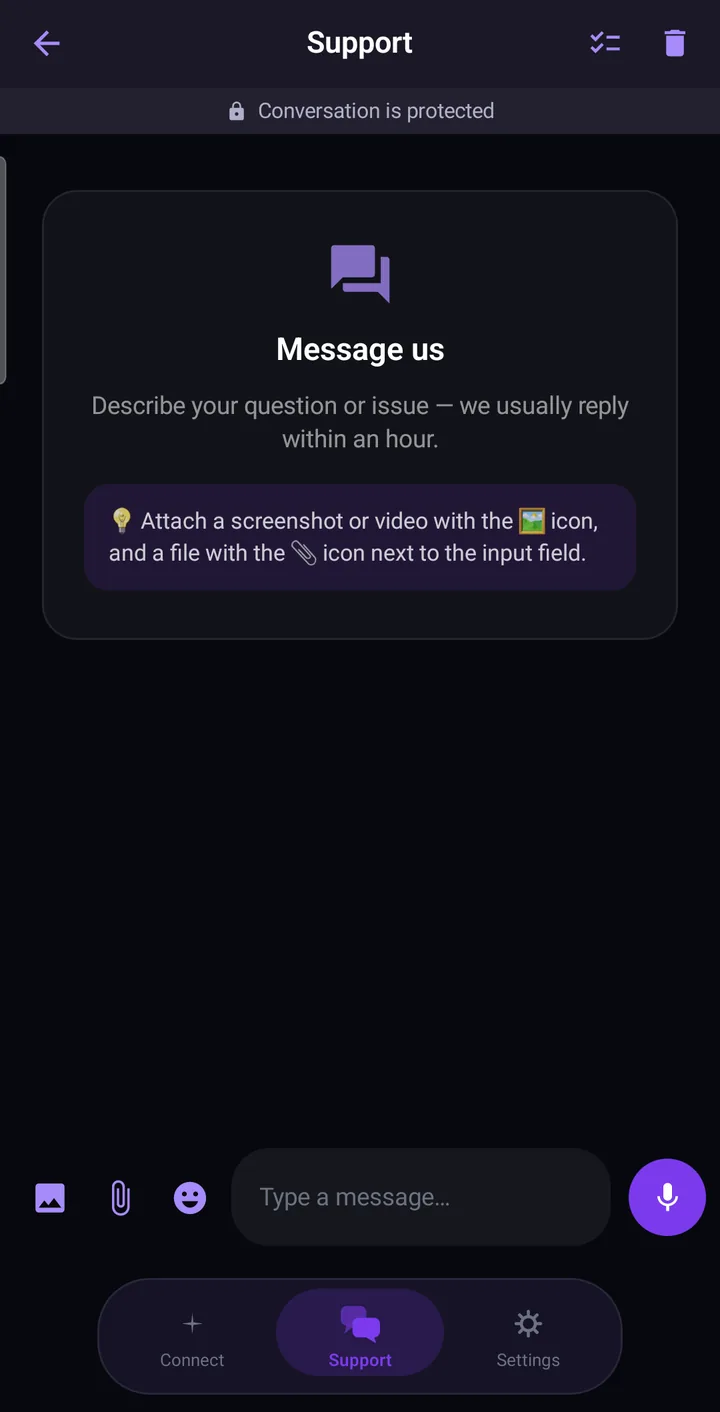
Next to the input field you will find two attachment icons:
- the picture icon adds a screenshot or a video;
- the paperclip adds a file. There you can also choose “Send VPN logs”.
You can also write to support@astriavpn.com if you prefer email. The chat requires you to be signed in to your Astria VPN account.
What to send us
A good report saves several rounds of questions. Include:
- Your platform and what you were doing (“Android, connecting on mobile data”).
- The country you selected and the connection type.
- What you expected and what happened instead, including any message the app showed.
- A screenshot or short video of the problem.
- The event log, with the connection log from the moment it happened.
- Your Speed Test result, if the issue is about speed.
Please do not send your password. We never need it.
The Android manual shows the Support tab step by step.