Your Astria VPN plan covers 1, 3 or 5 devices at the same time. On Android, open Settings and tap “Active sessions” to see which devices are signed in and to end any of them. To sign in on an Android TV, tap “Sign in on Android TV” in Settings and scan the QR code shown on the TV.
How many devices a plan allows
Every plan includes the full product; the only difference is how many devices are signed in to your account at once: 1, 3 or 5. The free 24-hour trial is for one device. A “device” here means a signed-in app — your phone, your tablet, your laptop — not a number of connections.
If you are not sure how many slots you are using, you do not have to guess. The app shows it for you.
Where to see Active sessions
Open the Settings tab. At the top is your account: your email, the date your subscription is valid to, and a row called “Active sessions” with a counter such as “Devices: 2 of 3”. The counter shows how many of your allowed devices are currently signed in.
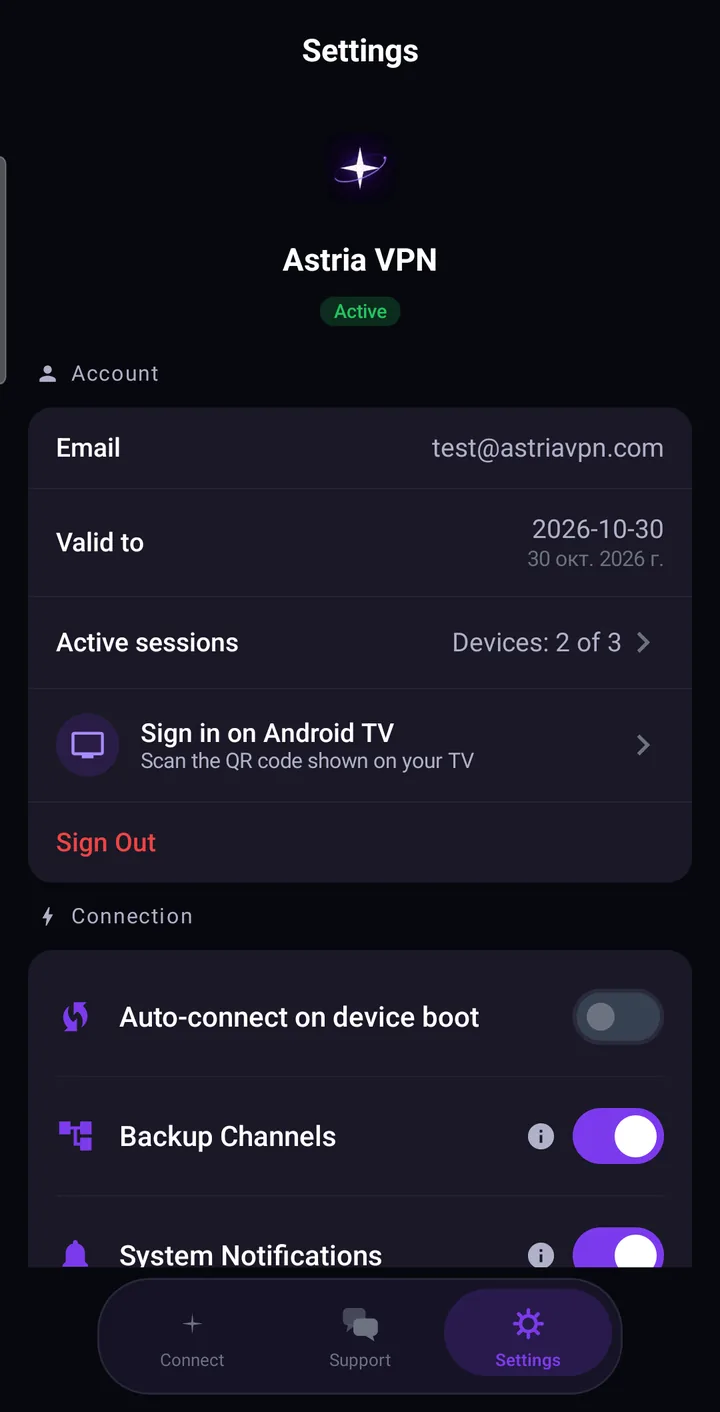
Tap the row to open the list. For each session you see a name for the device, whether it is “This device”, when it was last active and when it signed in, and the date the session is valid until. If the list does not load, tap “Retry”.
Ending a session
Next to every other device there is an “End” button. The app asks “End this session?” and explains the consequence: that device will need to sign in again. Nothing else changes — your account and your subscription stay as they are, and you can sign the device back in whenever you like.
This is the right tool when a slot is taken by something you no longer use: an old phone, a tablet you gave away, or an app you reinstalled. If several slots are stuck, the list also offers “Sign out other devices”. It signs out every device except the one in your hand, and asks for confirmation first. When it finishes, the app tells you how many devices were signed out.
What happens when the limit is reached
If you sign in on a new device while all your slots are taken, the plan’s device limit applies. The app does not leave you locked out. Instead, the device that has been inactive the longest is signed out to make room for the new one. On the device that was signed out, the app says so: “Signed out on this device”, with a note that you can sign in again at any time.
That is why it is worth glancing at Active sessions now and then. If a device keeps getting signed out unexpectedly, the list will show you which devices share the account. If you want more devices at once, choose a plan with more of them.
Signing in on Android TV
Typing an email and password with a TV remote is slow and awkward, so Astria VPN lets your phone do it for you.
- On the TV, open Astria VPN and choose to sign in. The TV shows a QR code.
- On your phone, open Settings and tap “Sign in on Android TV”.
- Point the camera at the QR code on the TV screen. The app only accepts Astria VPN TV codes; anything else is rejected.
- Check the device name the app shows and confirm “Sign in on this TV?”. Your account is then signed in on that TV, and the app says “Done! The TV is signed in.”
If the app says the code was not found or has expired, refresh the QR code on the TV and scan it again. Confirming also means accepting the Terms of Service and Privacy Policy for that device.
Once signed in, the TV takes one of your device slots, just like a phone or a tablet, and shows up in Active sessions.
Signing out
In Settings you will find “Sign Out”. The app asks you to confirm and then signs this device out of your account. Use it before you sell or hand over a phone. If you no longer have the device in your hand, end its session from another device instead.
A few habits that help
- Check Active sessions after you change phones.
- End sessions you do not recognise or no longer need.
- Use the QR sign-in for TVs instead of typing a password on a screen others can see.
Step-by-step screenshots are in the account and devices section of the Android manual. For anything unclear, write to us in the support chat or by email at support@astriavpn.com.