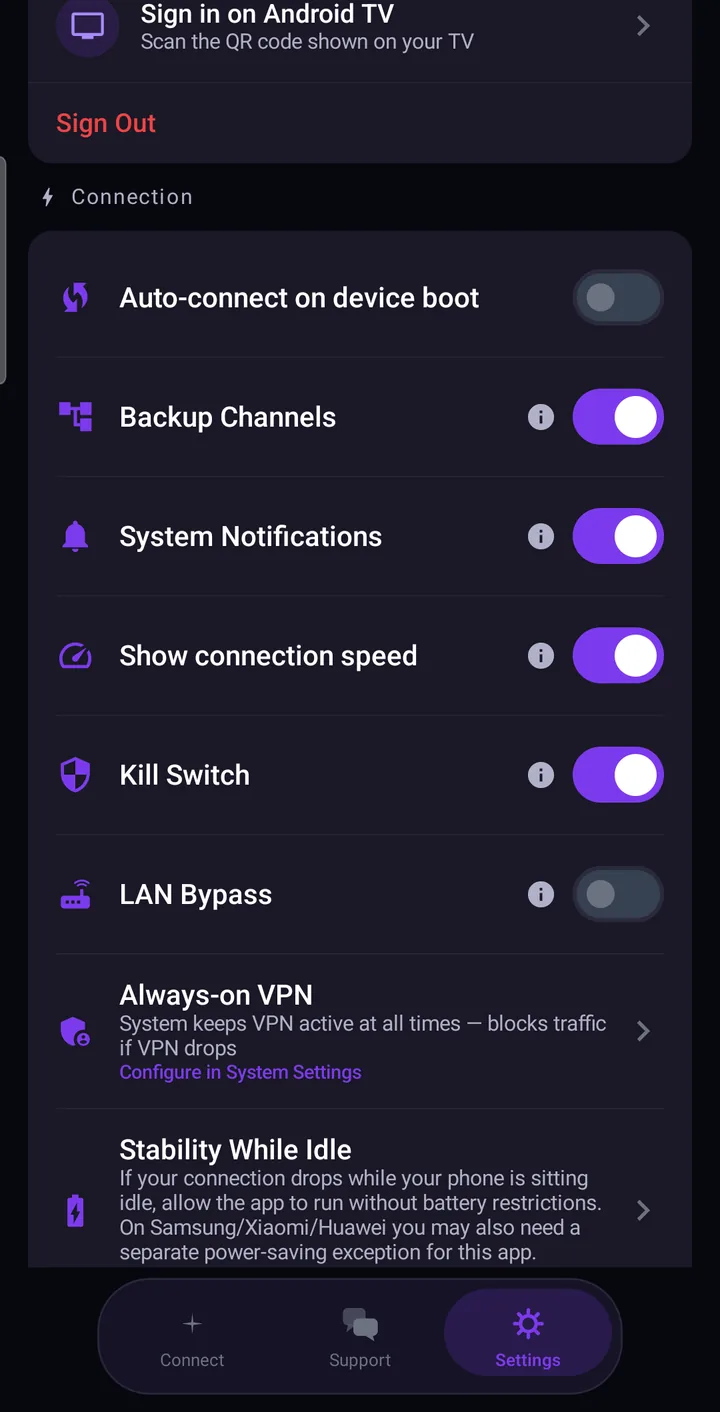
Astria VPN for Android can connect automatically when the phone starts and when you join a Wi-Fi network, so you are not left unprotected by accident. In Settings → Connection you also choose whether devices on your home network stay reachable (“LAN Bypass”), whether you get system notifications, and whether the speed is shown on the main screen.
Auto-connect on device boot
The switch Auto-connect on device boot starts the connection when your phone starts up, so protection is in place before you open a single app. It is a good default for a phone you carry everywhere. If you turn it on, you will no longer need to remember to tap the star after a restart.
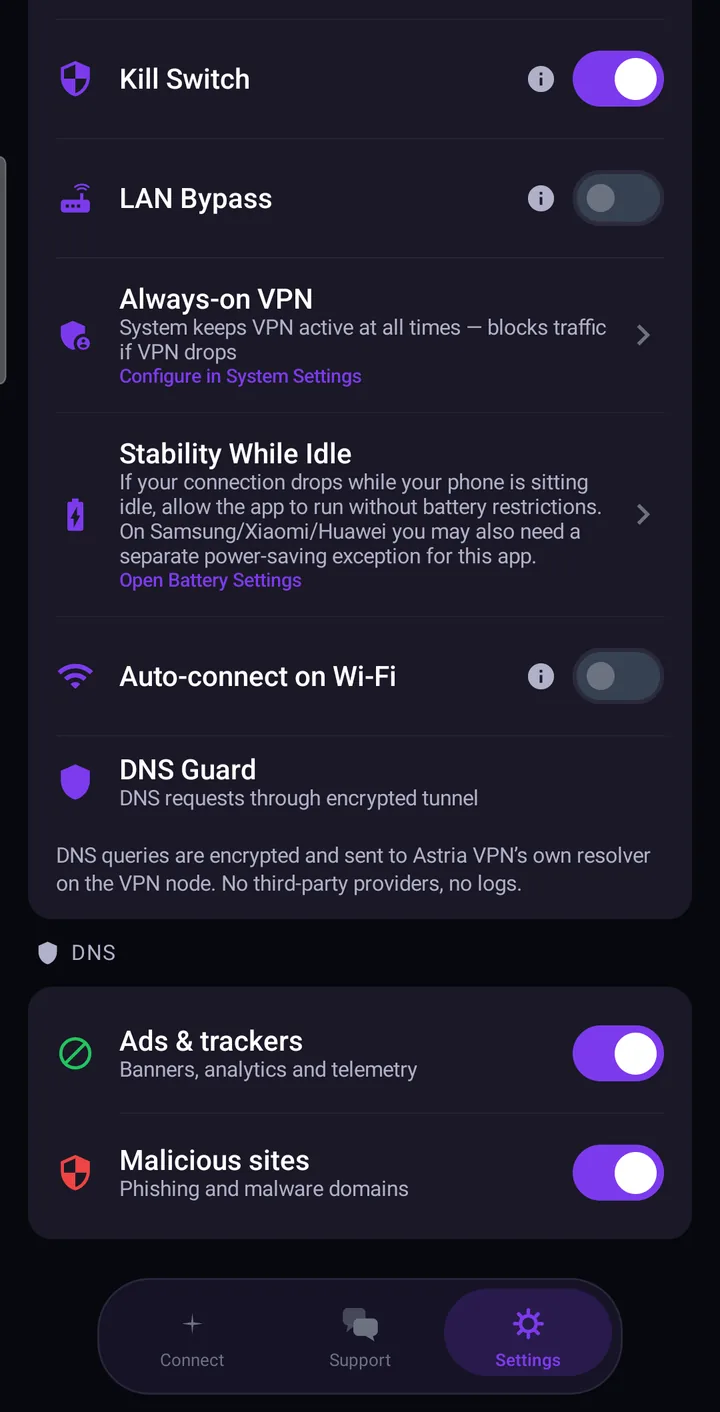
Auto-connect on Wi-Fi
Auto-connect on Wi-Fi connects the VPN automatically whenever you join any Wi-Fi network. This is the setting that matters most in cafés, hotels, airports and offices, where you do not control the network. Join, and the tunnel comes up on its own.
Together these two switches cover the two moments a phone is most often caught unprotected: right after it starts, and right after it joins a new network.
Local network access (LAN Bypass)
A VPN sends your traffic to a remote server, which has an awkward side effect: the printer on your desk, the TV in the living room and the router’s admin page are suddenly “somewhere else”.
LAN Bypass (“Allow access to local network devices (printers, NAS, router) while VPN is on”) solves this. With it on, traffic to the private address ranges of your local network goes directly to your devices instead of through the tunnel, so printing, casting and opening the router page keep working. Everything else still goes through the VPN.
Keep one thing in mind: traffic to local devices does not pass through the tunnel by design. At home that is exactly what you want. On a public Wi-Fi network it is wiser to switch LAN Bypass off, because you rarely need to reach anything on that network.
System notifications and connection speed
System Notifications notifies you about connection, disconnection and errors. Leave it on if you want to know the moment protection changes, for example if the connection drops and the app reconnects. Switch it off if you prefer a quiet status bar; the main screen still shows the current state.
Show connection speed displays the download and upload speed on the Connect screen while the VPN is connected. It is purely informational. For a proper measurement use the built-in Speed Test, described in Speed test, event log and support on Android.
Backup channels
To work, the app regularly talks to Astria VPN’s control servers, which provide it with configuration such as the server list. Backup Channels means: if the main control server cannot be reached, the app automatically switches to backup control servers instead of failing. In plain language, it is a spare route for the app’s own housekeeping, so a temporary problem on one server does not stop you from connecting. There is nothing to configure beyond the switch itself.
Two more switches that work with these
Further down in the same section sit Always-on VPN and Stability While Idle. Always-on VPN asks Android to keep the VPN active at all times and to block traffic if it drops; it is opened with “Configure in System Settings”. Stability While Idle helps if the connection drops while the phone sits unused. Both are covered in Kill Switch and Always-on VPN on Android and Why the connection drops in sleep mode.
Recommended combinations
Travel. Turn on auto-connect on device boot and on Wi-Fi, keep System Notifications on, and keep LAN Bypass off unless you need to reach a device in your hotel room. You will be protected from the moment you land and join the first network.
At home. Keep auto-connect on boot on, turn LAN Bypass on so the printer, TV and router stay reachable, and decide for yourself about auto-connect on Wi-Fi: with it on, your home network is protected too, and LAN Bypass keeps local devices working.
Public Wi-Fi. Turn on auto-connect on Wi-Fi, keep Kill Switch on, and switch LAN Bypass off. Show connection speed is optional.
Whatever you choose, leave Backup Channels on, since it only helps.
You can find the full walkthrough with screenshots in the Android manual.