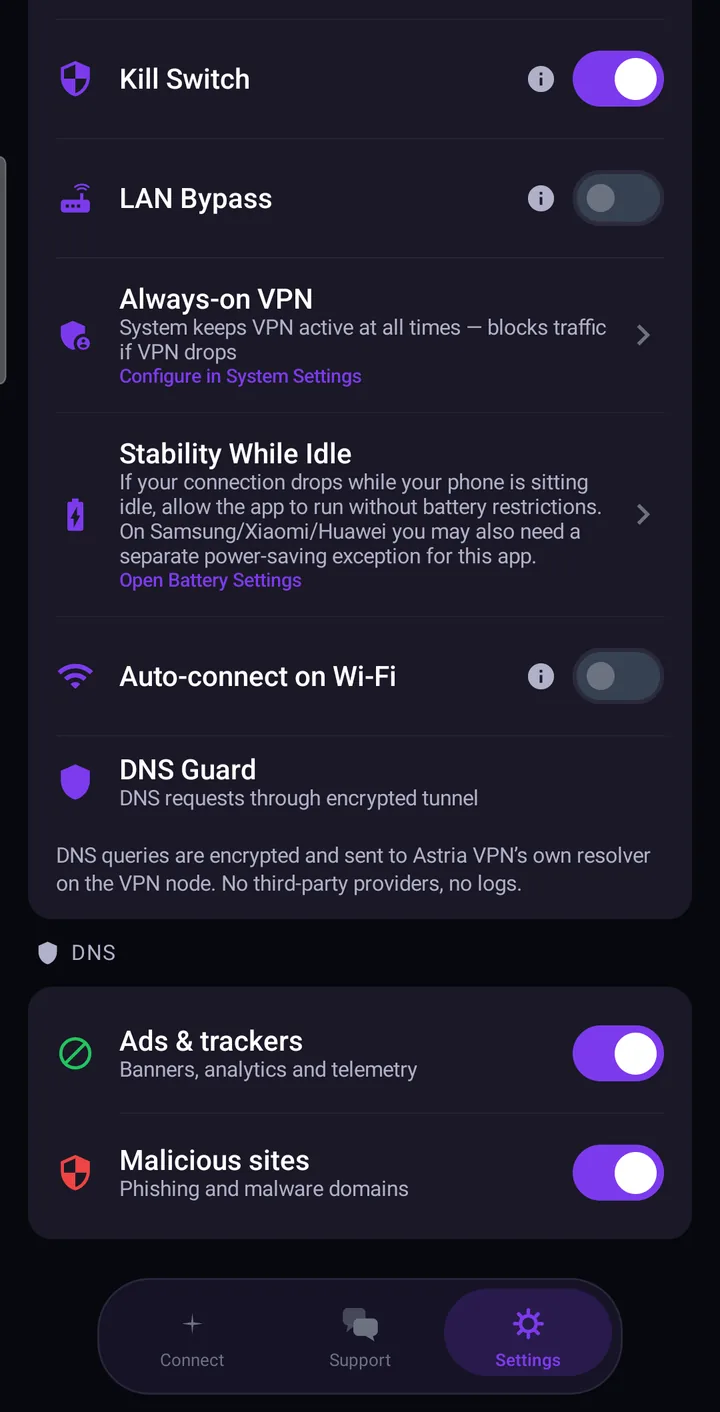
Android saves battery by limiting or stopping apps that run in the background, and a VPN is one of them. If your connection drops while the phone sits idle, allow Astria VPN to run without battery restrictions: open Settings → Connection → Stability While Idle and tap Open Battery Settings. On some phones you also need a separate power-saving exception for the app.
What is happening
When the screen goes off and the phone has been still for a while, Android becomes more aggressive about background activity. That is good for battery life, but a VPN has to stay alive in the background to keep your traffic protected. If the system decides the app is not needed, the tunnel can end. Phone makers often add their own, stricter layer on top of Android's: the app's own note says that on Samsung, Xiaomi and Huawei devices you may need a separate power-saving exception for it.
This is not a fault of any particular server or connection mode. It is a rule of the phone, and it is usually fixed in a minute.
Step 1: allow unrestricted battery use
- Open the Settings tab in Astria VPN and go to the Connection section.
- Find Stability While Idle. The description reads: “If your connection drops while your phone is sitting idle, allow the app to run without battery restrictions.”
- Tap Open Battery Settings. Android opens the battery settings for the app.
- Choose the option that allows the app to run without restrictions. The wording differs between Android versions and phone makers, so look for the choice that removes battery limits for Astria VPN.
Step 2: check your phone maker's power saving
Phone makers add their own, stricter power-saving layer on top of Android. The idea is the same everywhere — allow Astria VPN to run in the background without limits — but menu names differ between models and software versions, so treat the paths below as a guide rather than an exact script:
- Samsung (One UI). Open Settings → Apps → Astria VPN → Battery and choose Unrestricted (on some versions: Battery optimization → Don’t optimize). Then check Settings → Battery → Background usage limits: turn off Put unused apps to sleep, or make sure Astria VPN is not listed under Sleeping apps or Deep sleeping apps (on some versions you can add it to Never sleeping apps).
- Xiaomi (MIUI / HyperOS). Open Settings → Apps → Manage apps → Astria VPN, set Battery saver to No restrictions, and allow Autostart for the app (Settings → Apps → Permissions → Autostart, or the same switch in the Security app).
- Huawei (EMUI / HarmonyOS). Open Settings → Battery → App launch, turn off Manage all automatically, then for Astria VPN enable Auto-launch, Secondary launch and Run in background.
- Other phones. Open Battery or Power saving, find the list of apps and choose the option that removes limits for Astria VPN.
If your phone can lock apps in the recent-apps screen, lock Astria VPN there as well, and make sure it is not closed when you clear recent apps.
Step 3: add supporting measures
These do not replace the battery setting, but they shorten any gap in protection:
- Always-on VPN. Under Connection, tap Configure in System Settings and enable it, together with Block connections without VPN. Android then keeps the VPN active and blocks traffic if it disconnects. See Kill Switch and Always-on VPN on Android.
- Auto-connect on device boot. The VPN starts when the phone starts.
- Auto-connect on Wi-Fi. The VPN connects automatically when you join a Wi-Fi network.
- Kill Switch. If the tunnel does drop, traffic is held back rather than leaving over your normal connection.
More on the automatic options is in Auto-connect and local network access on Android.
Checklist
- Stability While Idle: battery use allowed without restrictions.
- Your phone maker's power-saving exception for Astria VPN is in place, if your phone has one.
- Always-on VPN and Block connections without VPN are on.
- Auto-connect on device boot and on Wi-Fi are on.
- Kill Switch is on.
- The connection type is AstriaVeilLink-5, our recommended default. Change it only if a particular network is unstable; step down one mode at a time.
- Leave the phone idle for a while with the screen off, then check that the status is still “Connected”.
When to contact support
If the connection still drops after these steps, write to us in the Support tab of the app or at support@astriavpn.com. Attach the event log: open Settings → Tools → Event Log, which holds the app log and the connection log. Tell us your phone make and model, the Android version, roughly how long the phone was idle, and which of the steps above you have already done. That is usually enough for us to see what happened. More about the log is in Speed test, event log and support.