Kill Switch is a switch inside Astria VPN that blocks traffic when the VPN tunnel drops. Always-on VPN is an Android system option that keeps the VPN active at all times and blocks traffic when it disconnects. They protect against the same risk from two sides, and we recommend turning both on.
Two layers, one goal
A VPN connection can break for ordinary reasons: you move from Wi-Fi to mobile data, the signal disappears in a lift, the phone wakes after a long idle period. In that gap, apps would normally carry on over your regular connection, and your real address and traffic would no longer be inside the tunnel. We explain the general idea in What Is a Kill Switch and Why You Need One.
On Android there are two separate mechanisms:
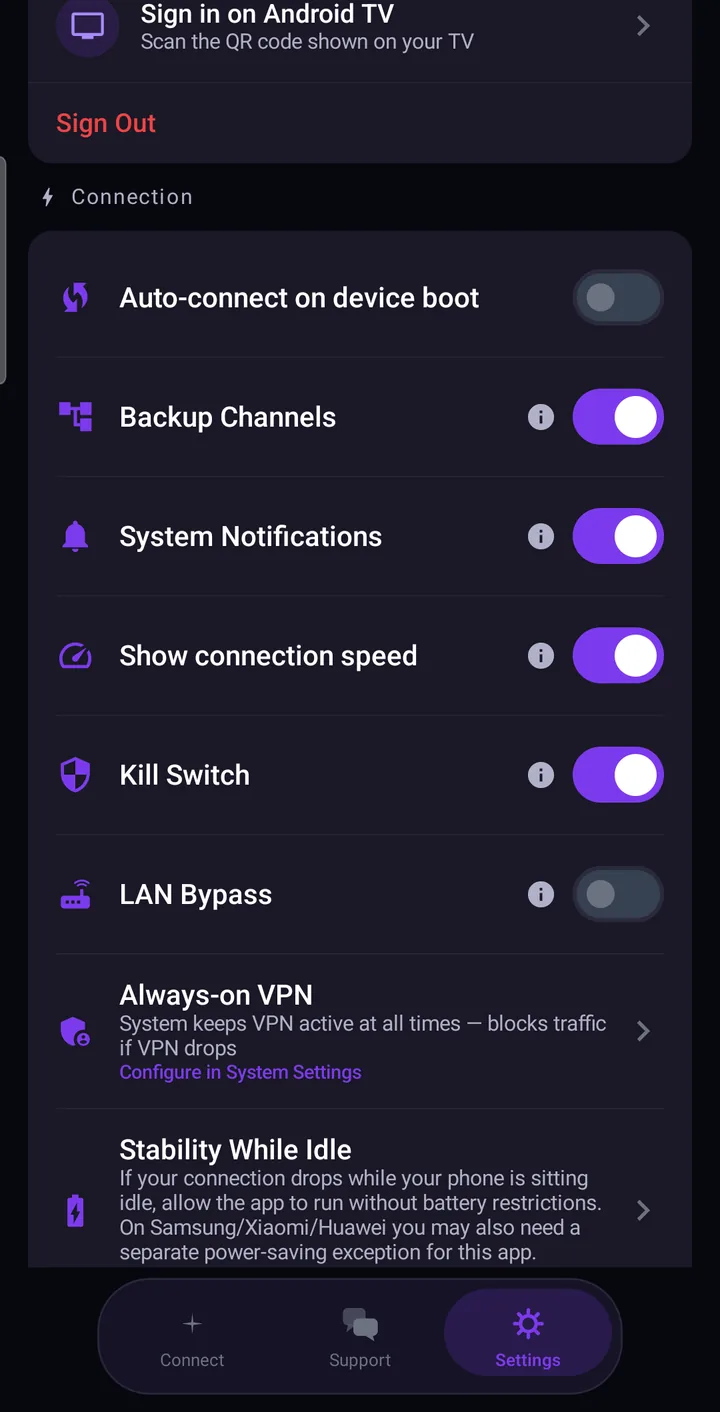
- Kill Switch lives in the app. Under Settings → Connection it is described as “Block traffic if VPN tunnel drops”. If the connection is lost, the app keeps the tunnel interface open and holds traffic back until it can reconnect.
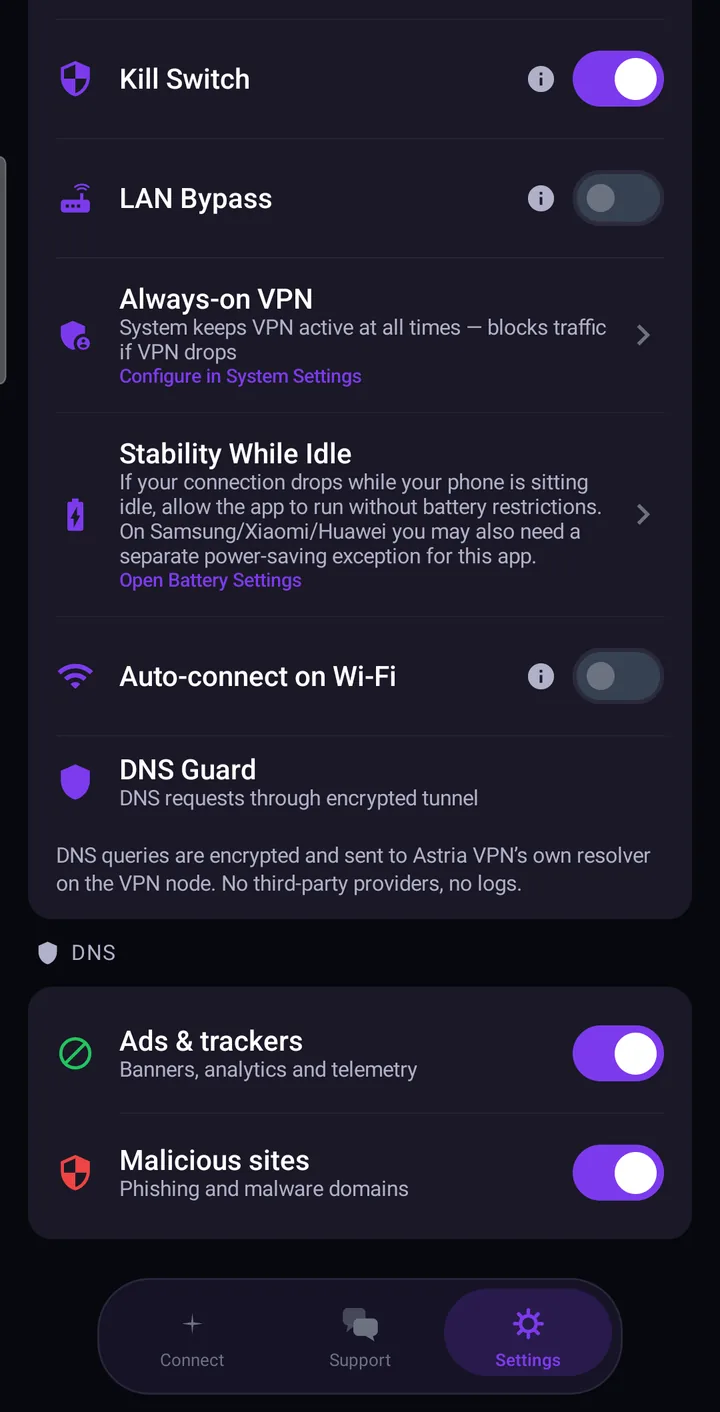
- Always-on VPN lives in Android itself. In the app it is described as: “System keeps VPN active at all times — blocks traffic if VPN drops”. Because it is the system that enforces it, it also covers moments when the app is not in the foreground.
How to turn on Kill Switch
- Open the Settings tab and find the Connection section.
- Switch Kill Switch on.
That is all. The setting is part of the protection described in the Android guide. If the whole network disappears while you are connected (for example in airplane mode or a dead zone), the app keeps traffic blocked and waits for connectivity to come back, then reconnects.
How to turn on Always-on VPN
The system option cannot be switched on from inside the app, so the app takes you to the right place.
- In Settings → Connection, find Always-on VPN and tap Configure in System Settings.
- Android opens its VPN settings. Choose Astria VPN there and enable Always-on VPN.
- Also enable Block connections without VPN. This is the part that stops traffic while the VPN is down; the app's own prompt asks you to turn on both.
The exact wording and layout of Android's VPN screen differ a little between phone makers and Android versions, so look for these two options rather than for a fixed path.
When to use both
For everyday use, keep both on. Kill Switch is quick to enable and works inside the app. Always-on VPN adds the system's own guarantee: Android keeps the VPN active and blocks traffic if it disconnects, including after a restart or when the app has been stopped in the background.
If you only want one, choose based on the risk. Kill Switch alone is fine if you always start the VPN yourself and keep the app running. If you want the connection to be there without thinking about it, add Always-on VPN. You can also combine it with Auto-connect on device boot and Auto-connect on Wi-Fi, which are in the same section.
One trade-off to expect: with these protections on, apps will not load while the VPN is down. That is the point, but it can look like “the internet is broken”. Reconnect the VPN, or turn the protection off deliberately if you need an unprotected connection.
How to check that it works
- Always-on VPN: open Android's VPN settings again and confirm that Astria VPN is selected, with Always-on VPN and Block connections without VPN enabled.
- Kill Switch: connect, then briefly turn on airplane mode. While you are offline nothing should load, and when you turn airplane mode off the connection should resume. If you want to see what happened, open Settings → Tools → Event Log, which keeps the app and connection log.
What to expect when the VPN drops
Traffic stops rather than switching quietly to your normal connection. Then one of two things happens: the app reconnects by itself once a network is available, or, if it cannot, you tap the star on the main screen to connect again. If drops are frequent, the cause is often the phone putting the app to sleep; see Why the VPN connection drops when the phone sleeps.