On the main screen of Astria VPN for Android, two fields decide how you connect: Location and Connection type. For most people the best setup is a location with a short response time and the connection type AstriaVeilLink-5, our recommended and fastest mode. Both choices apply the next time you connect.
Choosing a location
Tap the Location field to open the list of countries. Each country shows its current response time, and green means fast.
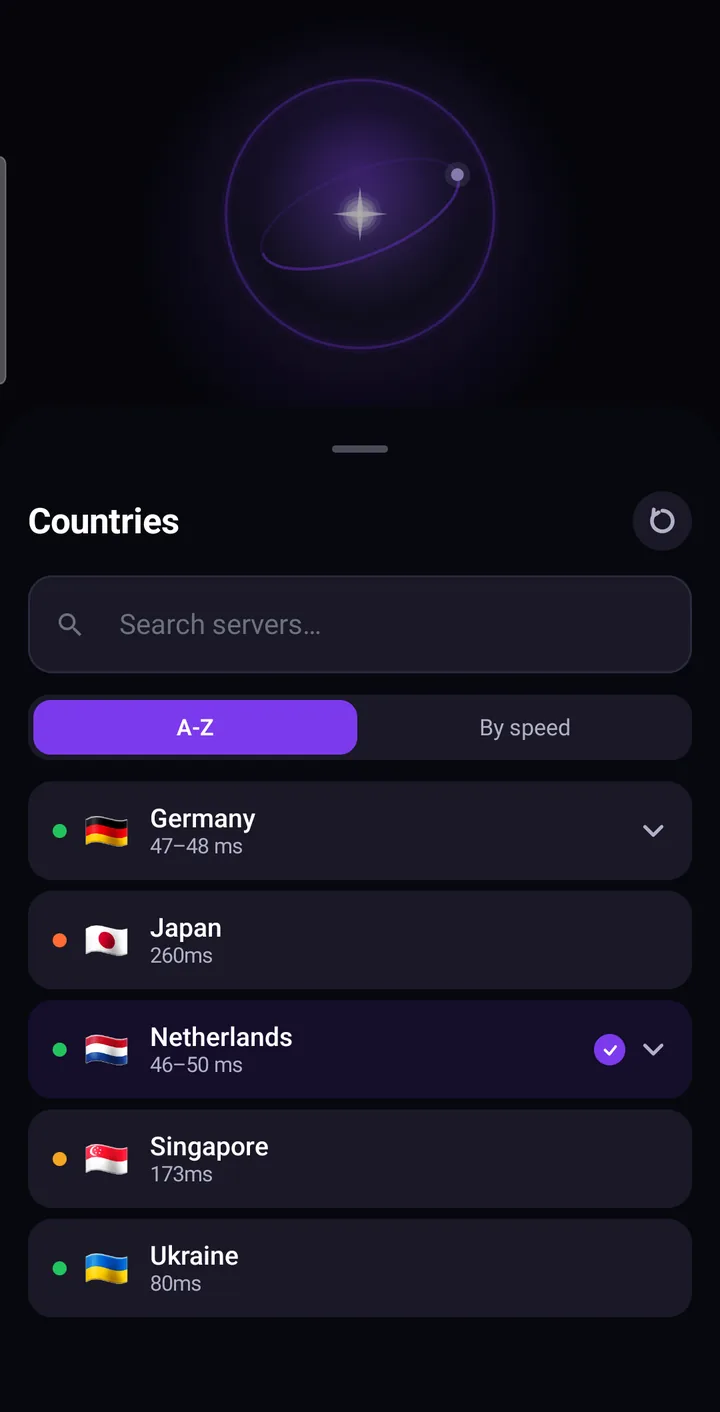
What you can do on this screen:
- Sort the list. “A–Z” orders countries by name; “By speed” puts the quickest ones first. If you simply want a responsive connection, sort by speed and pick from the top.
- Search. Type in the search box to find a country or a server quickly.
- Refresh. Tap the refresh button to measure the response times again — useful after you switch from Wi-Fi to mobile data, because the numbers depend on your current network.
- Pick a country or a specific server. Tap a country to select it, or expand it to choose a particular server.
The new choice applies the next time you connect. If you are already connected, disconnect and connect again to move to the new location.
Which location should I pick?
The nearest location with a good response time is usually the fastest and the most comfortable for everyday use. Choose a different country when you specifically want your connection to come from there. Response times are a guide, not a promise — they change with your network and the time of day, which is why the refresh button is there.
Choosing a connection type
Under Connection type you choose one of five AstriaVeilLink modes. They are all built on AstriaVeilLink, the connection protocol we designed ourselves, and all of them encrypt your traffic. The difference is how much speed you keep versus how much extra headroom is added for difficult network conditions.
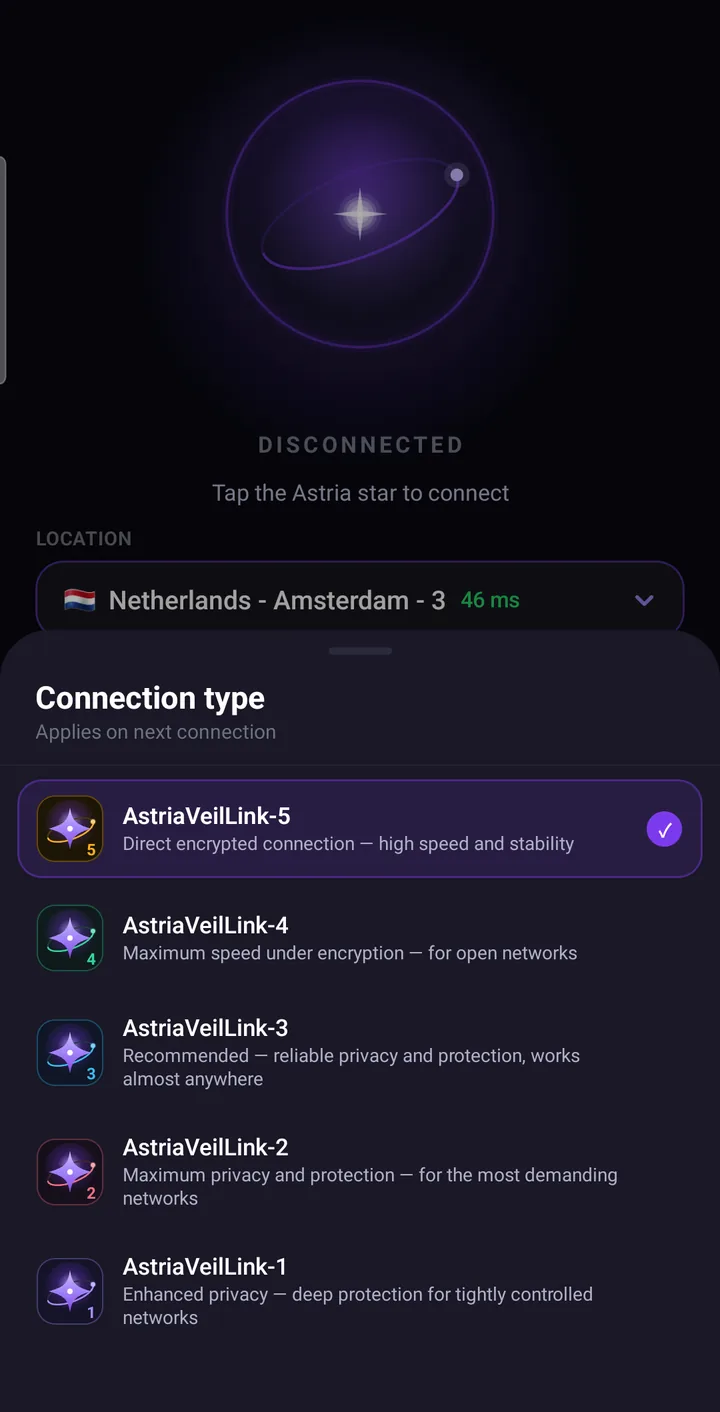
- AstriaVeilLink-5 — a direct encrypted connection with high speed and stability. Recommended; start here. It is the default.
- AstriaVeilLink-4 — maximum speed under encryption, for open networks.
- AstriaVeilLink-3 — a dependable middle step that works almost everywhere.
- AstriaVeilLink-2 — maximum privacy and protection for the most demanding networks.
- AstriaVeilLink-1 — enhanced privacy and the most cautious mode; the last step.
Start with AstriaVeilLink-5
Keep the connection type on AstriaVeilLink-5 for everyday use. It is the leanest and fastest mode, and on most networks it is all you will ever need.
Step down one mode at a time
If a particular network gives you an unstable connection, step down one mode at a time: AstriaVeilLink-4, then -3, -2 and finally -1. Each step down trades a little speed for more reliability headroom. Do not jump straight to -1 — it costs the most speed, and a milder step is often enough. The choice applies on the next connection. Our post Which Connection Mode Should You Use? compares all five side by side.
When you move to another network that behaves normally, go back to AstriaVeilLink-5.
Quick tips
- Sort by speed and refresh the list when you change networks.
- Leave the connection type on AstriaVeilLink-5 unless a network is unstable.
- Change only one setting at a time — location or connection type — so you can tell which one made the difference.
- If a connection will not start at all, try another location before changing the mode.
- When you contact support, attach the Event log from Settings → Tools — see the guide to the speed test, event log and support.