Split tunneling in Astria VPN for Android is a single switch. When it is on, the app sends some local services directly and keeps everything else inside the encrypted VPN tunnel. It is off by default and never turns on by itself — and traffic that goes direct is not protected by the VPN.
What split tunneling is and why it exists
A VPN normally wraps all of your traffic in one tunnel. That is exactly what you want for private browsing, but it is not always ideal for services in your own country. Some banks, marketplaces and delivery apps are cautious about connections that arrive from a VPN address, and a local service reached through a distant server can feel slower than it needs to be.
Split tunneling is a compromise for those cases. Instead of choosing between "everything protected" and "nothing protected", you let the app send a small part of your traffic straight to the internet while the rest stays encrypted. If you want the general idea first, read our split tunneling overview; this article focuses on the Android app.
How it works in the app
There is one switch, and you can reach it in two places:
- On the main screen. The Split tunneling card sits below the location and connection type fields, with the switch on it.
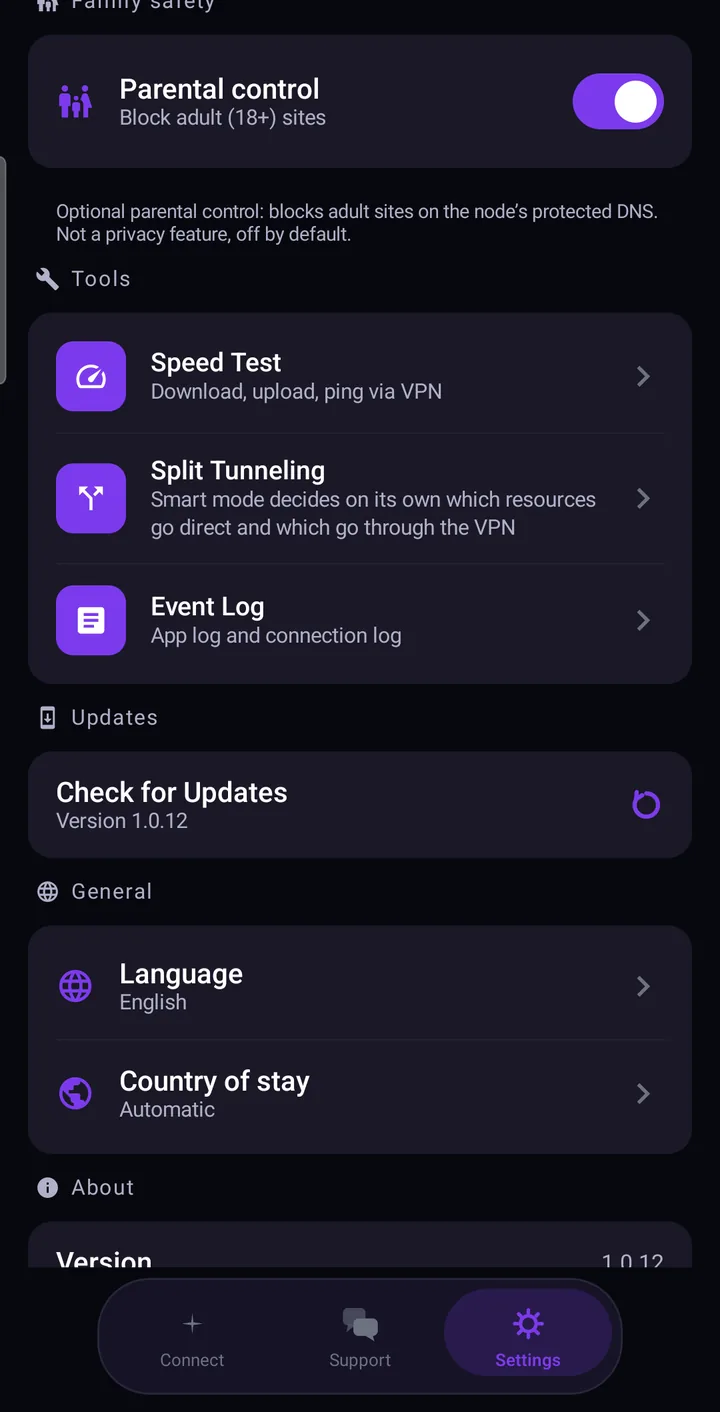
- In Settings → Tools. The same switch, with the same state.
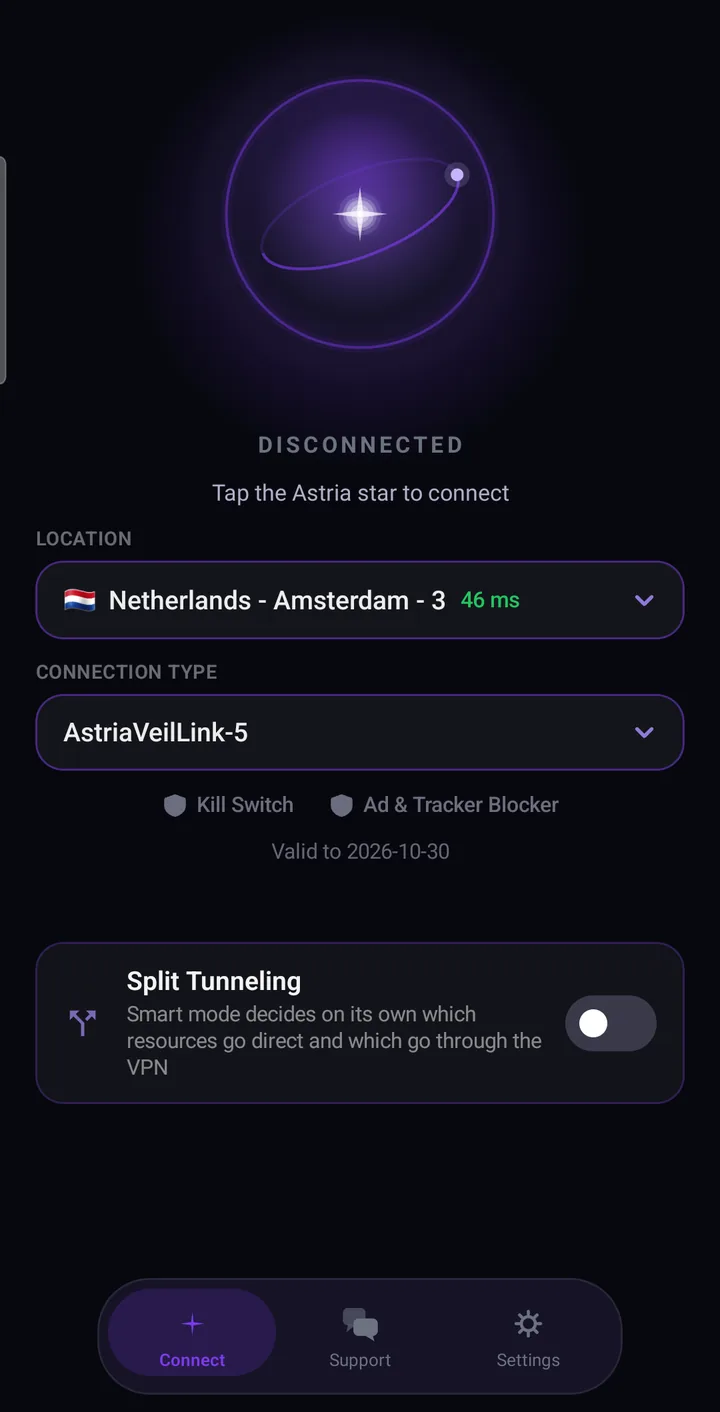
When the switch is on, the app decides on its own which local services go directly and which stay inside the VPN. The decision is based on your country of stay. There are no lists to maintain and no separate modes to choose between — one switch, on or off.
If you change the switch while the VPN is connected, the app reconnects so the new setting takes effect. Turn the switch off and all traffic goes through the VPN again.
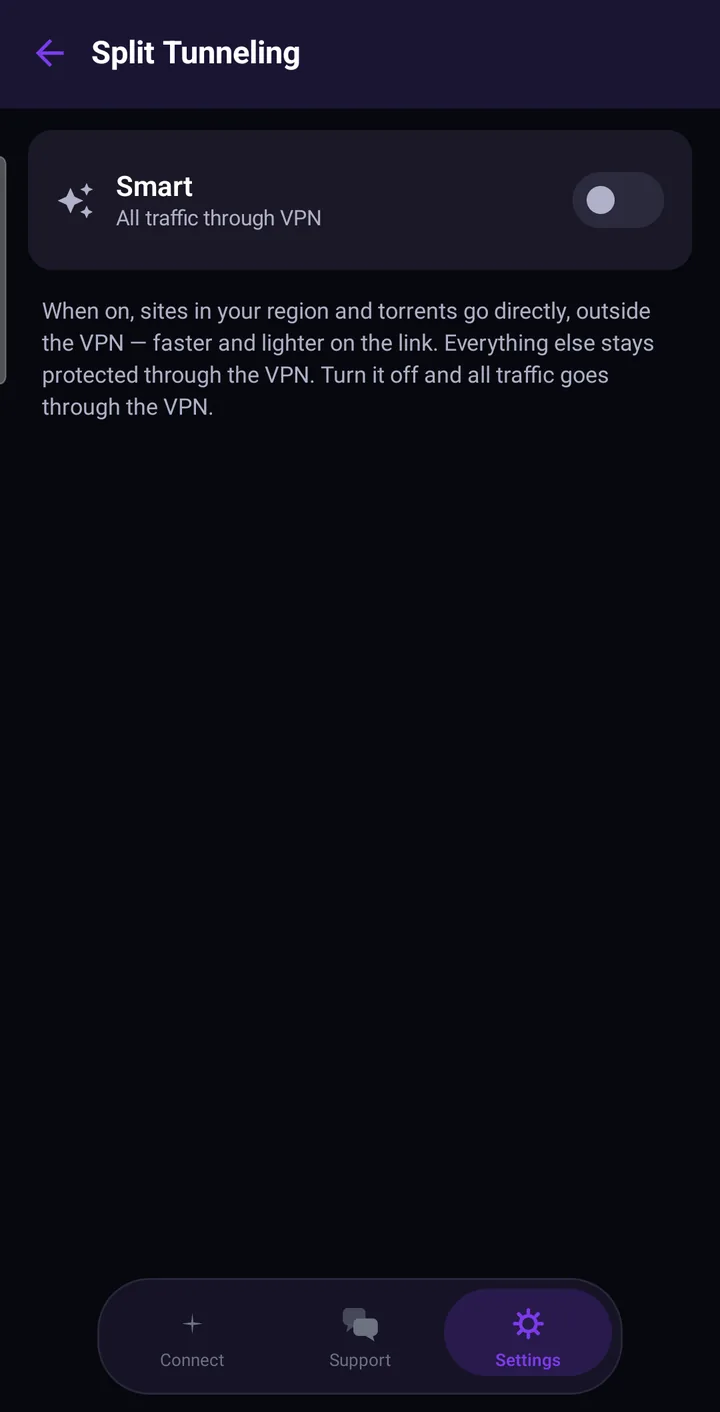
Country of stay
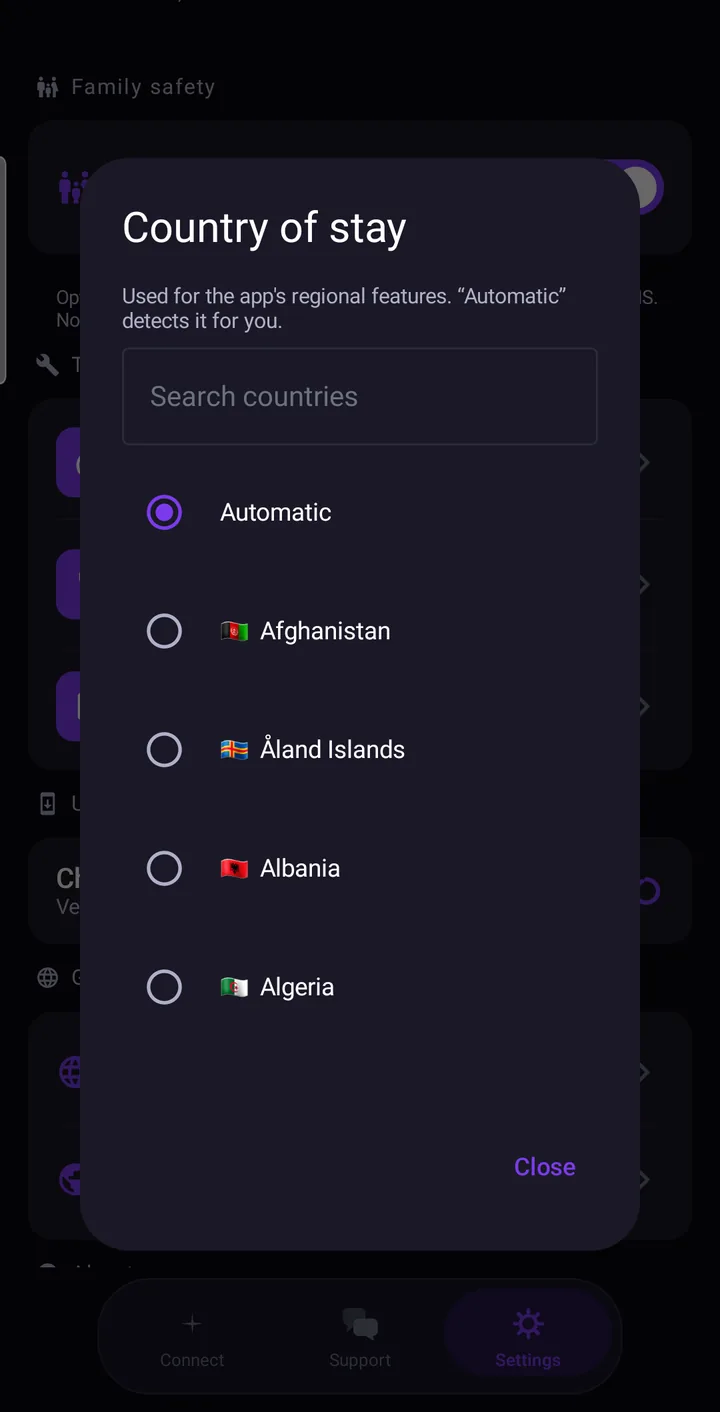
The app detects your country of stay automatically. That is usually all you need. If the detected country is wrong — for example, because of how your mobile network is routed — choose it yourself:
- Open Settings → General → Country of stay.
- Pick your country from the list, or type in the Search countries field. Every country is listed.
- To go back to automatic detection, choose Automatic. That is the default.
Split tunneling works for most countries, and the country picker covers all of them.
What goes direct and what stays protected
When the switch is on, local services — sites and services from your country of stay, and torrent clients — connect directly. Everything else stays inside the tunnel, with the same encryption, Kill Switch and DNS protection as before.
There is no manual list yet. You cannot pick individual apps or sites; manual selection of resources is in development, along with split tunneling on macOS and Windows.
Travelling with Astria VPN
Astria VPN exists to protect your data wherever you are. We do not offer or market our service in countries with special conditions for internet use. But if you are about to travel to such a country, you can take your protection with you: the app has convenient settings for trips, including split tunneling with a choice of your country of stay. Before you travel, read the local rules — following them remains the user’s responsibility.
The privacy trade-off
This part matters, so we will be plain about it: traffic that goes direct is not protected by the VPN. Your network and your internet provider can see where that traffic is going, exactly as they would without Astria VPN. In exchange you get speed and fewer problems with local services. You are choosing convenience for that specific traffic, and everything else keeps its protection.
When to turn it on, and when to leave it off
Turn it on when:
- a local service you use regularly is slow through the VPN or does not like VPN addresses;
- you are on your own trusted network and want local services to feel as fast as possible.
Leave it off when:
- you are on public Wi-Fi — in a café, hotel or airport — and want everything protected;
- you are doing anything sensitive, such as handling personal documents or private messages;
- you are not sure. Off is the safest choice, and it is the default.
You can flip the switch any time; it takes a few seconds, and you can turn it back off whenever the situation changes.
How to check that it works
- Make sure the switch is on, in the main-screen card or in Settings → Tools.
- Wait for the status to return to Connected after the automatic reconnect.
- Open the local service that gave you trouble. If it now loads normally, split tunneling is doing its job.
- If it makes no difference, or you would rather have full protection, switch it off.
Troubleshooting
The Split tunneling card or switch is not shown. The option is shown only where it is available. On some setups and on older Android versions it may not be offered. Everything else in the app works as usual, and all traffic simply stays inside the VPN.
The country looks wrong. Choose it manually in Settings → General → Country of stay. Switch back to Automatic whenever you like.
A local service still does not work. Try turning the switch off and on again, then reconnect. If the problem remains, contact support from the Support tab and attach the Event log from Settings → Tools.
FAQ
Is split tunneling on by default?
No. It is off by default and never turns on by itself. Until you switch it on, all traffic goes through the VPN.
Can I choose which apps or sites go direct?
Not yet. The app decides on its own, based on your country of stay. Manual selection of resources is in development.
Is traffic that goes direct protected?
No. Direct traffic leaves your device without the VPN, so your network can see it. Everything else stays encrypted.
Does it work in every country?
It works for most countries. The Country of stay list includes all countries, and you can choose yours manually if automatic detection gets it wrong.
Do I need to disconnect to change the switch?
No. If you change it while connected, the app reconnects on its own and applies the new setting.
Is split tunneling available on macOS and Windows?
Not yet. It is in development for those platforms.