DNS protection in Astria VPN for Android sends your DNS queries through the encrypted tunnel to Astria VPN’s own resolver on the VPN node, with no third-party DNS providers involved. On top of that you can turn on two filters, “Ads & trackers” and “Malicious sites”, which block those domains for every app on your phone while the VPN is connected.
What DNS protection does
Every time an app or website needs to reach a server, your phone first asks a DNS resolver to turn a name like example.com into an address. Left alone, those questions usually go to your mobile carrier or your Wi-Fi network. They reveal which services you use, even when the traffic itself is encrypted. We explain the background in DNS privacy: why your VPN alone isn’t enough.
When Astria VPN is connected on Android, DNS requests go through the encrypted tunnel and are answered by Astria VPN’s own resolver running on the VPN node. There are no third-party DNS providers in the chain, and the app has nothing to configure for this part: it is simply how the connection works. In Settings you will see it as an informational row (“DNS Guard”) rather than a switch.
The two filters
Filtering is the optional layer on top. It is built on AstriaVeilNetGuard, our per-user filtering on the node’s DNS, and it has two switches:
- Ads & trackers — banners, analytics and telemetry domains.
- Malicious sites — phishing and malware domains.
When an app asks for a domain on one of these lists, the resolver simply does not return a usable address, so the connection never starts. Because this happens at the DNS level, it covers every app on the phone, not only your browser.
How to turn it on
- Connect to Astria VPN. Filters apply while the VPN is connected.
- Open the Settings tab and scroll to the DNS section.
- Switch on Ads & trackers and Malicious sites.
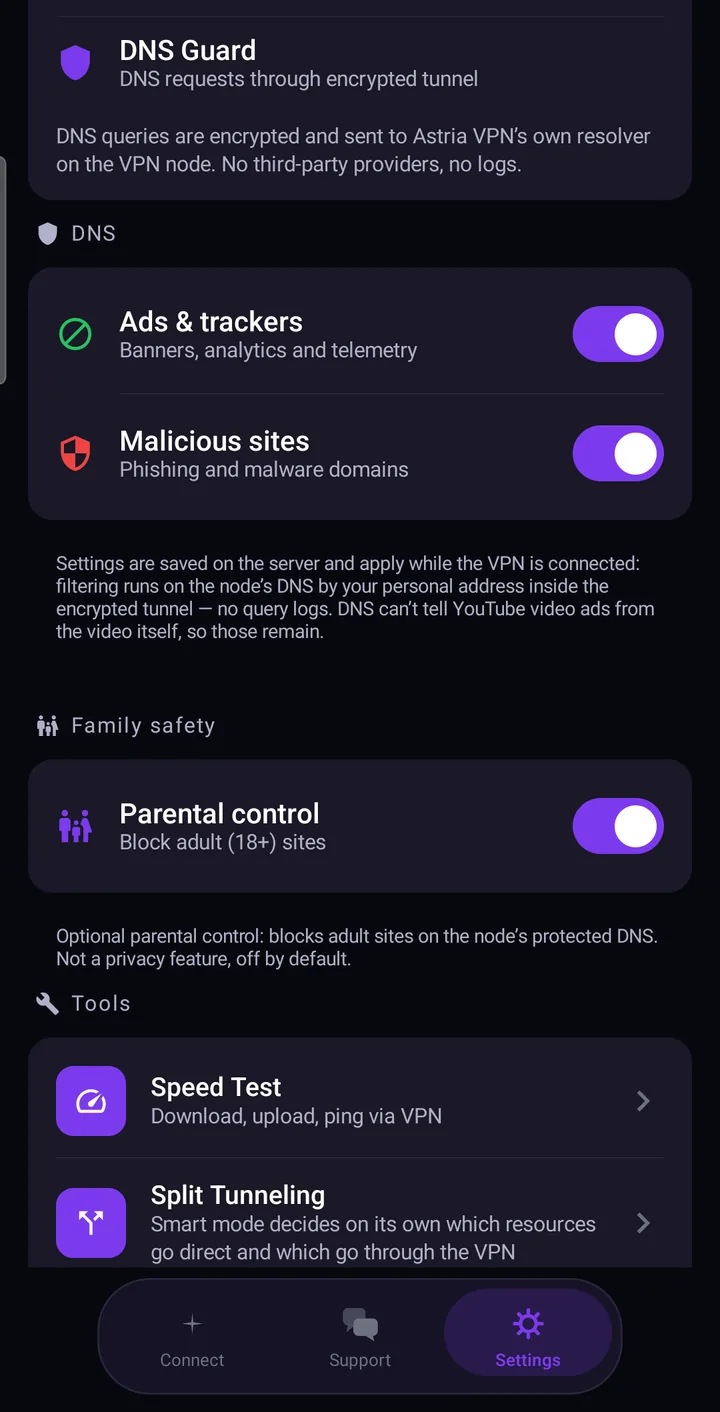
Your choice is saved on the server, so it stays in place the next time you connect. If the app cannot reach the server it tells you that your settings could not be saved; check your connection and try again. The full walkthrough with screenshots is in the Android manual.
Optional parental control
Under “Family safety” there is a third switch, Parental control, which blocks adult (18+) sites on the node’s protected DNS. It is optional and off by default. It is a convenience for families rather than a privacy feature, so leave it off unless you want it.
What DNS blocking cannot do
DNS filtering is a blunt, reliable tool, and it has honest limits:
- YouTube video ads stay. A video ad is delivered from the same address as the video itself. DNS cannot tell them apart, and blocking that address would block the video too.
- Ads served from the same domain as the content cannot be separated either. If a site or app delivers its ads and its articles from one domain, DNS sees only one name.
- It works only while the VPN is connected, because the filtering runs on the node.
If you see an ad after switching the filters on, one of these cases is the likely reason. It does not mean that the protection is off.
How it differs from an ad-blocking app
A typical ad blocker is an app or browser extension that inspects pages on your device and hides elements it recognises. DNS-level filtering works earlier and more simply: it refuses to look up the domains that serve ads and trackers. The result is that:
- it works across all apps, not just one browser;
- it needs no extra app running on the phone;
- it cannot hide a single banner inside a page that also carries content you want, because it never sees the page.
Think of it as a first line of defence that removes a large share of trackers and unwanted domains, not as a replacement for every possible blocking method.
How to check that it works
- Connect to Astria VPN and make sure the two filters are on in Settings → DNS.
- Open a news or recipe website that normally shows several banners. In a browser, banner ads from ad-serving domains should be missing or leave empty gaps.
- Switch the filters off, reload the same page and compare.
The main screen also shows the ad blocker chip while you are connected, so you can see at a glance that protection is active. Do not expect a clean YouTube feed: as described above, video ads remain.
Recommended setup
Leave DNS protection on, switch on both filters, keep Kill Switch enabled so nothing travels outside the tunnel if the connection drops, and keep the connection type on AstriaVeilLink-5. Parental control is up to you.