What you need
- An Android TV or a set-top box on Android 5.0 or later. This guide is for the 64-bit build; for 32-bit devices there is a separate build.
- An Astria VPN account (email and password) and the Astria VPN app on your phone to confirm the sign-in with a QR code. A free 24-hour trial is available through Telegram (@AstriaVPN_bot).
- A way to get the installer file (APK) onto the TV — for example a USB drive and a file manager on the TV.
Step 1: Which build do I need? Devices for the 64-bit build
The 64-bit build is for devices that run a 64-bit Android. Today these are few: Nvidia Shield TV (2015, 2017, 2019 and Shield TV Pro) accepts both builds, and Google has said that new 64-bit Google TV and Android TV devices are coming. Most other Android TV and Google TV devices — Xiaomi Mi Box S, Chromecast with Google TV, Google TV Streamer, many Amlogic S905X3 boxes — run a 32-bit Android and need the 32-bit build.
To check, install a free hardware-info app on the TV (for example Droid Hardware Info) and look at the list of supported ABIs: if arm64-v8a is listed, the 64-bit build works. If the installer says “App not installed”, your device is 32-bit — use the 32-bit build. With a computer, “adb shell getprop ro.product.cpu.abilist” prints the same list.
- Nvidia Shield TV and Shield TV Pro — both builds work; the 64-bit build is the natural choice.
- New 64-bit Google TV and Android TV devices, as they appear.
- Any device whose list of supported ABIs includes arm64-v8a.
Step 2: Download and install the app
Sign in to your personal account on a phone or computer: billing.astriavpn.com → Dashboard → “Download App” → the “Android TV (64-bit)” button. The installer is a file with the .apk extension. Copy it to a USB drive, plug the drive into the TV and open the file with a file manager on the TV.
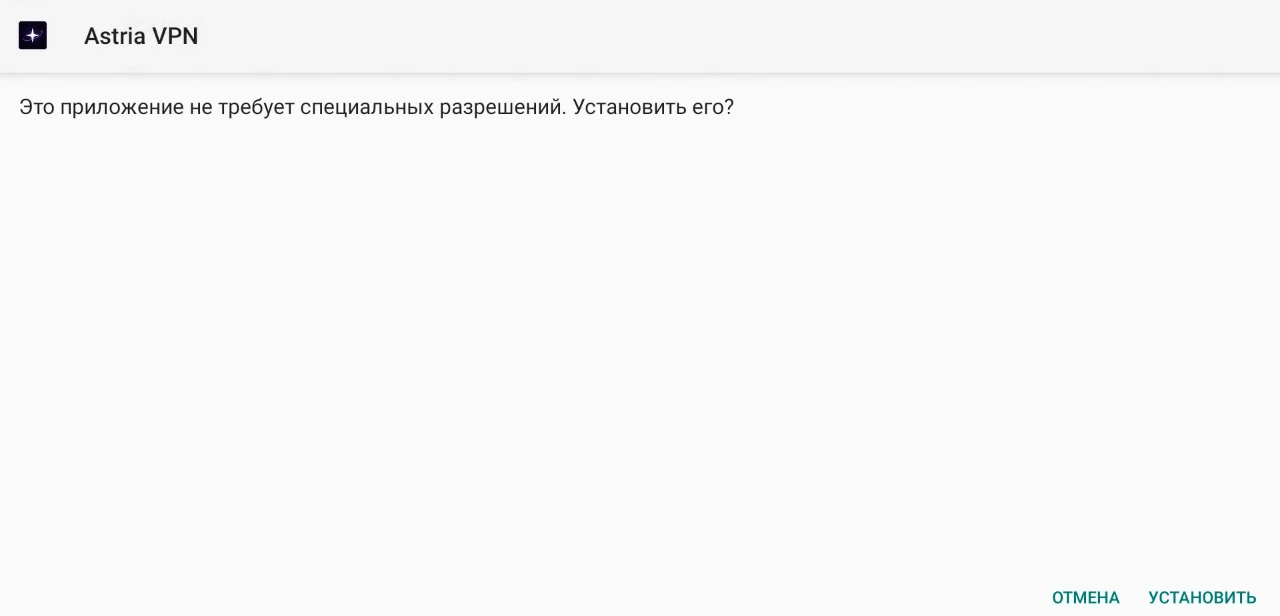
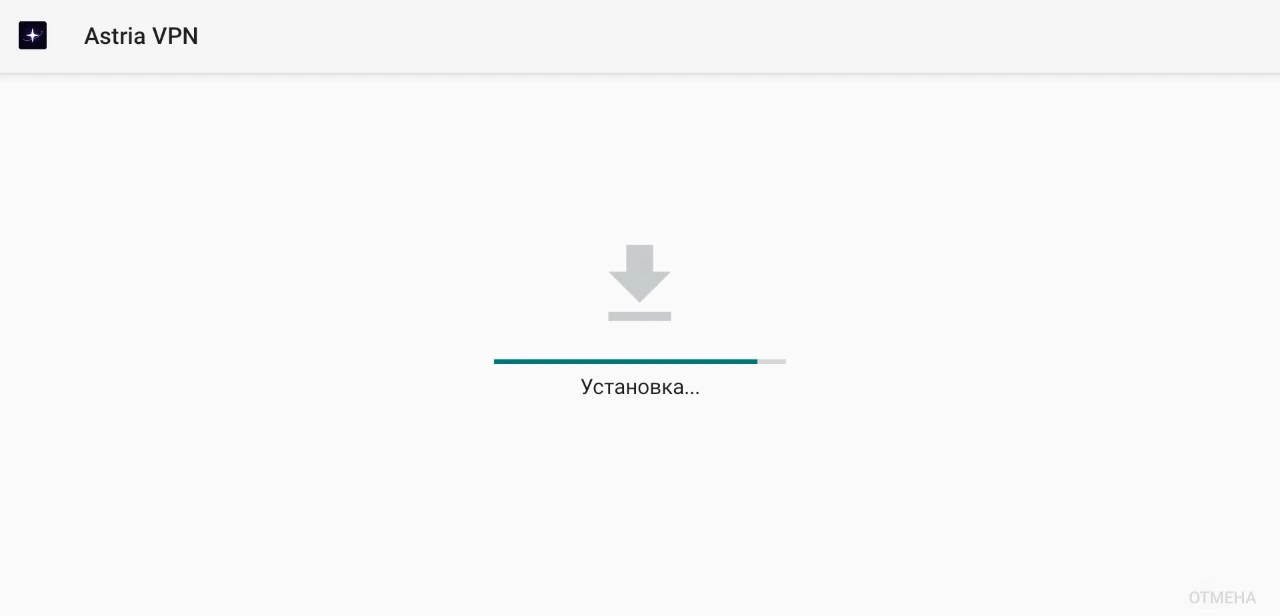
The TV shows the system installer with the app name and a question whether to install it. Choose “Install” (if the TV asks to allow installing from this source, allow it once). The installation takes a few seconds: the screen shows “Installing…”, then “Open”.
If the TV says the app is not installed, most likely your TV is 32-bit — install the 32-bit build “Android TV (32-bit)” instead. If the app is already installed, the installer offers to update it; your sign-in is kept.
The installer screens belong to your TV’s system, so their language and look depend on the TV; the screenshots are from a 32-bit TV box.
Step 3: Sign in with a QR code
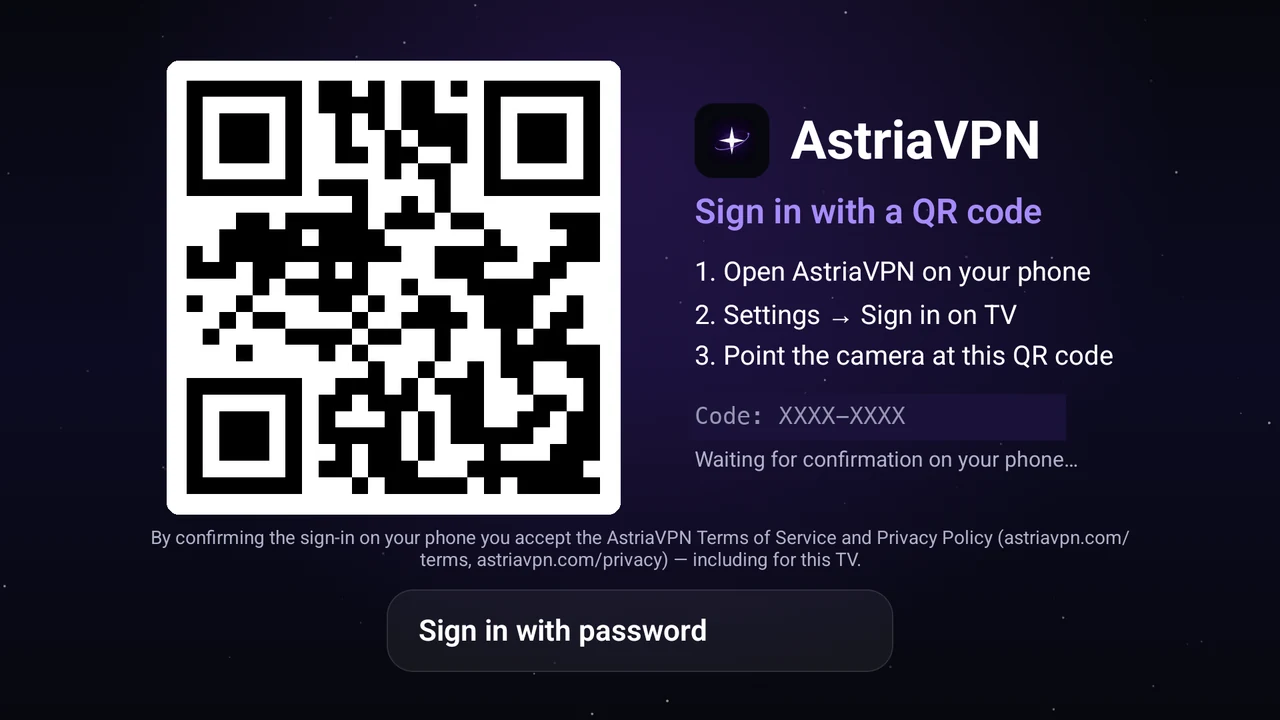
Open Astria VPN on the TV. The sign-in screen shows a QR code and a short code. On your phone open the Astria VPN app → Settings → “Sign in on TV”, point the camera at the QR code (or type the code by hand) and confirm. The TV signs in by itself within a few seconds.
By confirming the sign-in on your phone you accept the Terms of Use and the Privacy Policy, including for the TV. The TV counts as one of the devices of your plan: when the limit is reached, the session that was inactive the longest is signed out.
No phone at hand? Use the “Sign in with password” button and type your email and password with the TV remote.
Step 4: Choose a country
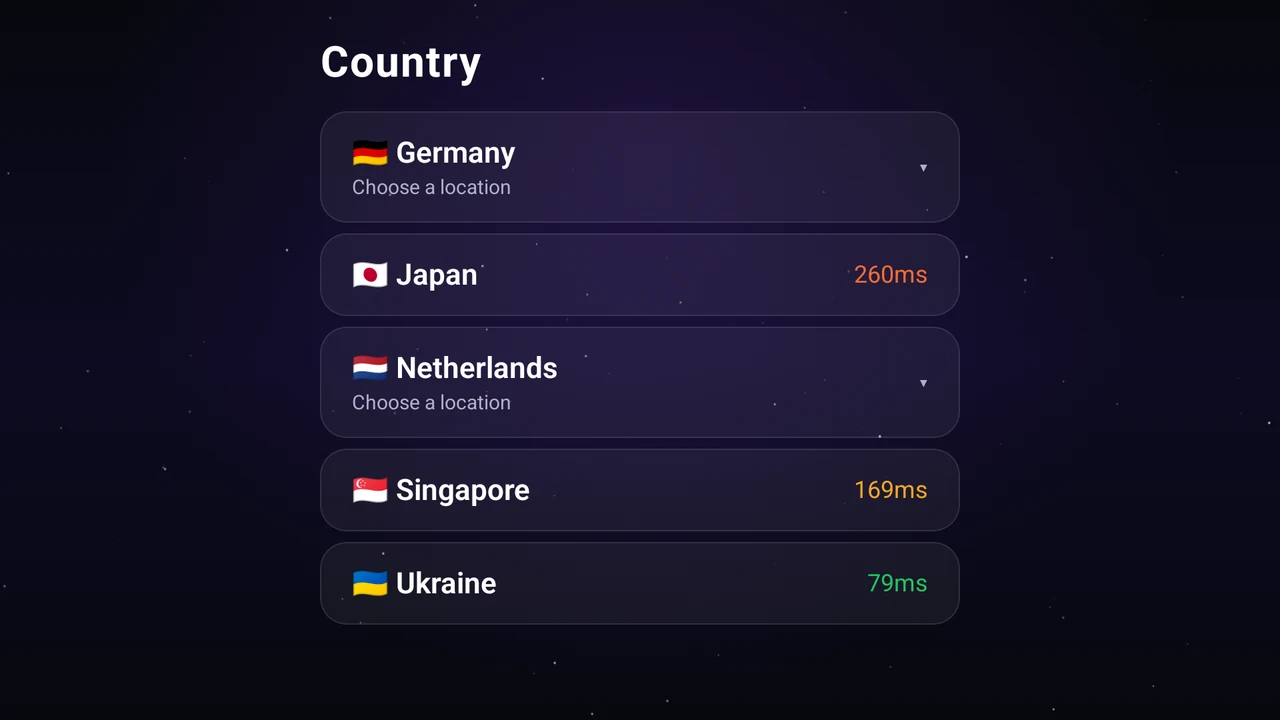
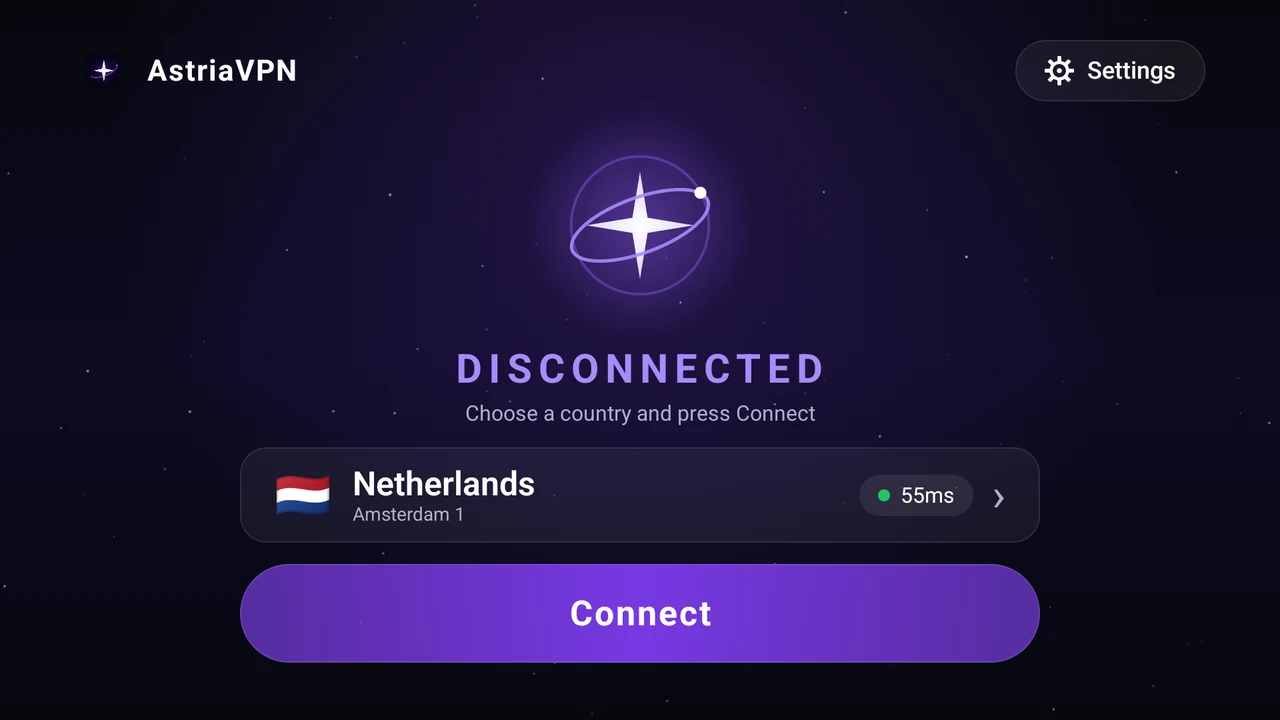
After signing in you see the main screen: “Disconnected”, a star and the “Country” card with the “Connect” button. Select the “Country” card and press OK on the remote.
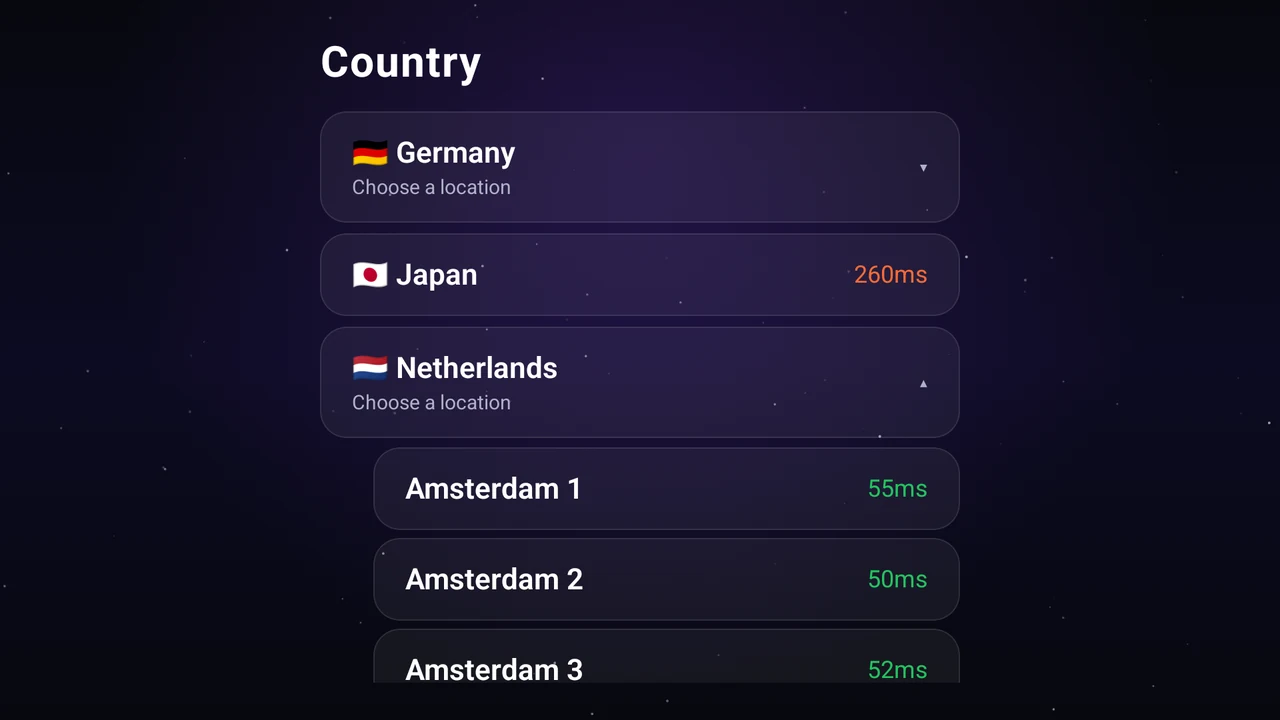
The list shows the countries with the current response time — the lower, the faster. Select a country and press OK to open its servers (for example Netherlands → Amsterdam 1, 2, 3), then pick a server. The country with a check mark is the current choice. The app uses AstriaVeilLink-5 — our recommended and fastest mode — and there is nothing else to configure.
Step 5: Connect
Back on the main screen, the chosen country and server are shown on the card. Select the “Connect” button and press OK.
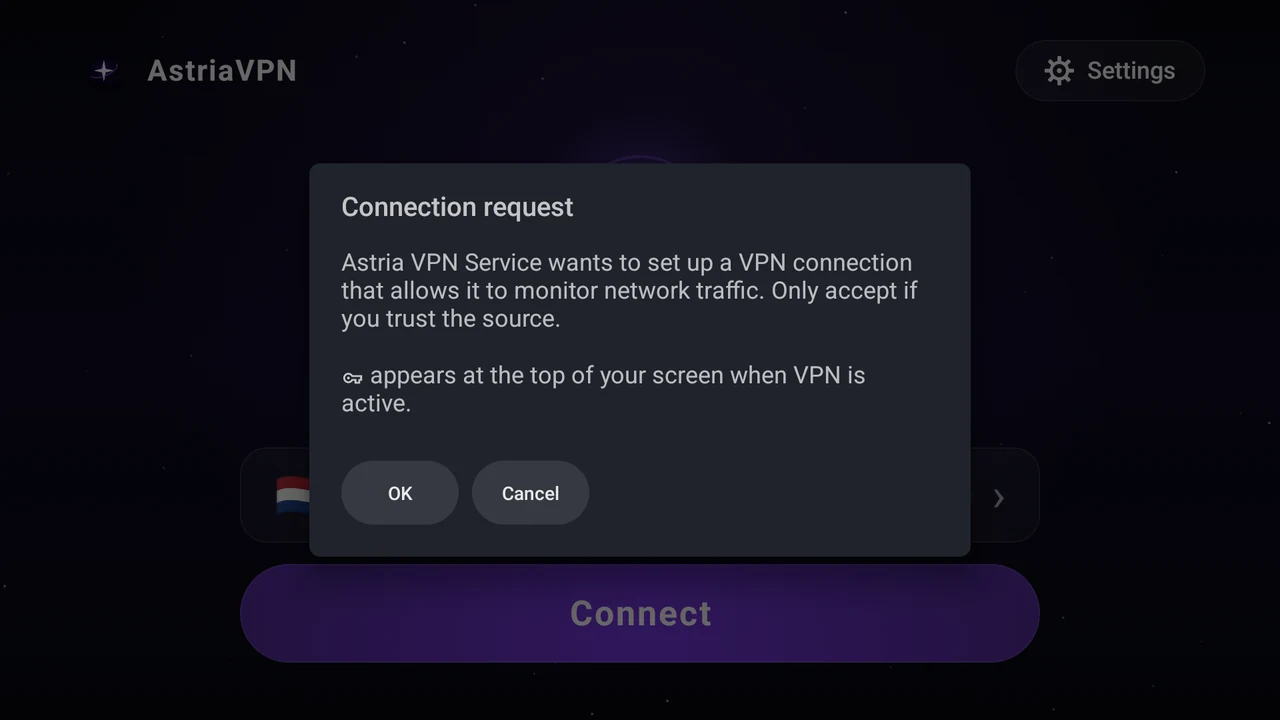
The first time, Android asks for permission to set up a VPN connection (“Connection request”). This is a standard system window: select “OK”. A key icon appears at the top of the screen while the VPN is on; you will not be asked again.
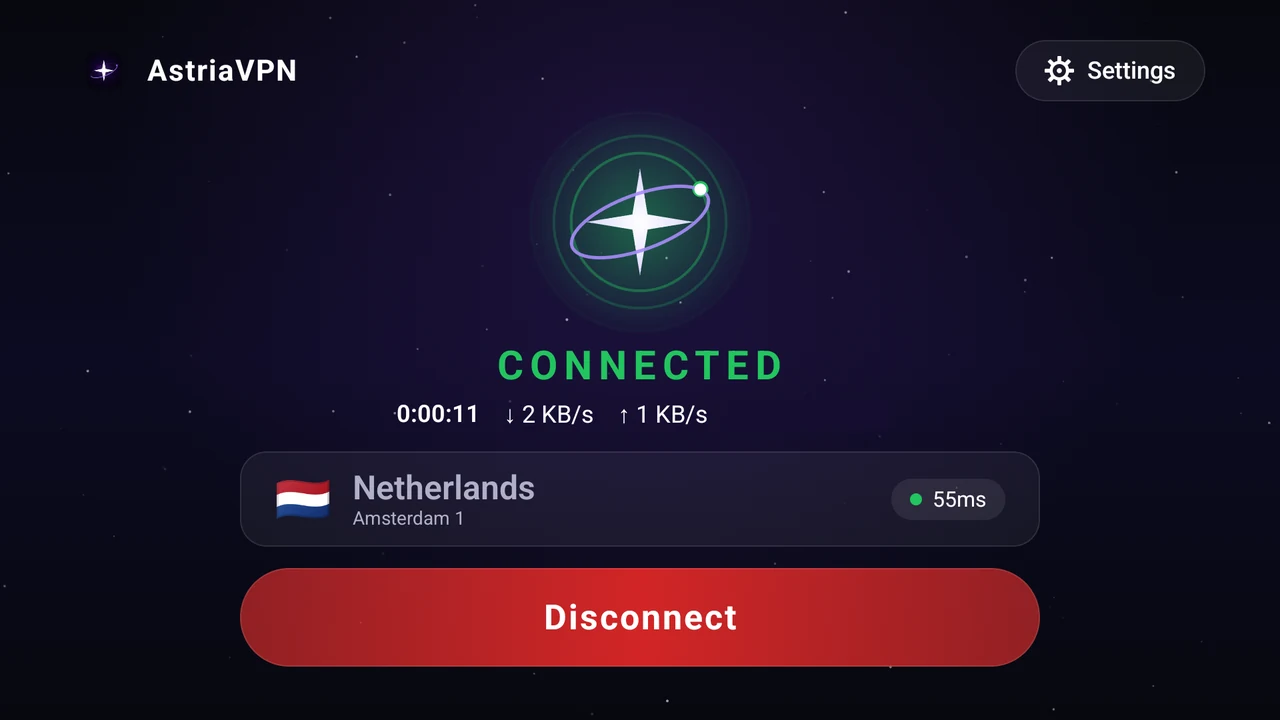
In a few seconds the status becomes “Connected”: the star turns green, and you see the timer, the live speed and your address inside the tunnel. To disconnect, select the red “Disconnect” button.
The address next to the timer (your address inside the tunnel) is hidden in our screenshots.
Step 6: Language, documents and sign-out
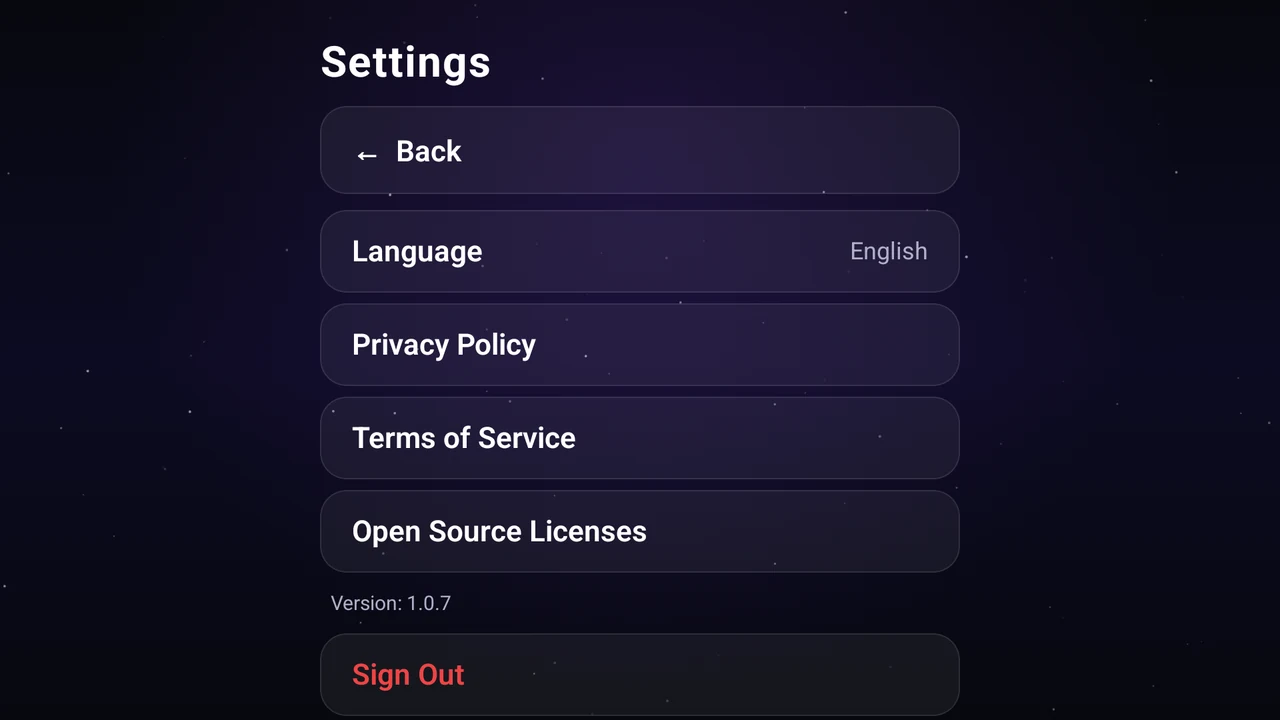
Select “Settings” in the top right corner of the main screen. There you can change the app language (English, Russian, Ukrainian or Chinese — the app switches at once), open the Privacy Policy, the Terms of Use and the open-source licenses, see the app version and sign out with “Sign Out”.
Sign out when you give the TV to someone else: it frees one place in the device limit of your plan. You can sign in again at any time with a new QR code.
Quick tips
- Choose the country with the lowest response time — it is usually the fastest one.
- Sign in with a QR code: it is quicker than typing a password with the remote.
- Keep the app updated: the TV app checks for new versions by itself.
- If something does not work, sign out and sign in again, then write to support from the Support tab of the app on your phone.
Frequently asked questions
Which build do I need — 64-bit or 32-bit?
Install the 64-bit build if your TV box runs a 64-bit Android (for example Nvidia Shield TV; most other Android TV devices are 32-bit). If the installer says the app is not installed, try the other build. The apps are identical in features.
Where do I get the installer?
In your personal account at billing.astriavpn.com: Dashboard → Download App → “Android TV (64-bit)” (or 32-bit). The file is available only to signed-in users.
How do I sign in on the TV?
On the TV open Astria VPN, then on your phone open Astria VPN → Settings → “Sign in on TV” and scan the QR code on the TV screen or type the code. You can also use the “Sign in with password” button.
Which connection type does the TV app use?
AstriaVeilLink-5 — our recommended, fastest mode. The TV app has no mode choice, so there is nothing to configure.
Why does Android ask for permission to set up a VPN connection?
It is a standard system window that Android shows to every VPN app the first time. Select OK; it is needed so that the app can create the protected connection.
Does the TV use one of my devices?
Yes. Signing in on the TV takes one place in the device limit of your plan (1, 3 or 5). When the limit is reached, the session that was inactive the longest is signed out. Use “Sign Out” on the TV to free the place.
Does the TV app have split tunneling or a speed test?
No, the TV app is deliberately minimal: choose a country and connect. Split tunneling and the speed test are available in the phone apps.
How do I change the language?
Settings → Language: English, Russian, Ukrainian or Chinese.
What if I forgot my password?
Sign in with the QR code instead. The password itself is recovered on the website, in your personal account: billing.astriavpn.com → “Forgot password?”.
Where do I get help?
Open Astria VPN on your phone → the Support tab (a protected chat), or write to support@astriavpn.com.
Get the app
The TV installer is in your personal account; no account yet? Start with the free 24-hour trial in Telegram.